Camera Bookmarks
Written By Nira.app
Last updated About 4 hours ago
Use a 3D Callout - Basic Text annotation as a camera bookmark. When a user clicks it, their 3D view shifts to its bookmarked position. View-only users do not see a detail window, but asset editors can edit the callout as shown below. The optional description is displayed in the 3D viewer and the 2D ortho viewer.
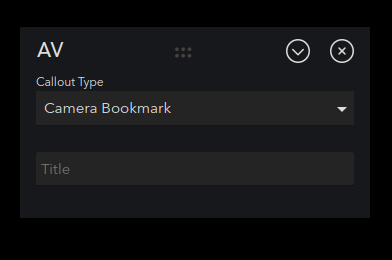
- Title: Shown beside the callout in the layer list window and in the 3D view when using the "Title" Callout View Style.
The dropdown in the window's upper right corner also offers several functions:
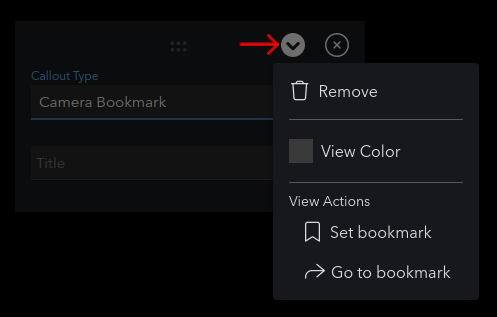
- Remove: Deletes the callout.
- View Color: Controls the color of the callout in the 3D view and its icon color in the layer list window.
- Set bookmark: Captures the view's current position as the callout's default. When a user clicks on the callout, the view will shift to this position.
- Go to bookmark: Immediately shifts the 3D view to the position saved using the Set Bookmark button.
Camera positions in View Variants
View Variants can also store named camera positions alongside view settings. In Manage View Variants, use a row's camera button to save, visit, or remove a position. You can duplicate a variant to reuse its view settings with a different camera position.
Use the annotation's option to copy its URL to the clipboard. Opening that URL navigates to the annotation's bookmarked view.
Camera Bookmark FAQs
Q. Can Camera Bookmark callouts appear in PDF Inspection Reports?
A. No. Only Defects and Measurements can appear in a PDF Inspection Report.