Measurements
Written By Nira.app
Last updated About 5 hours ago
Measurement
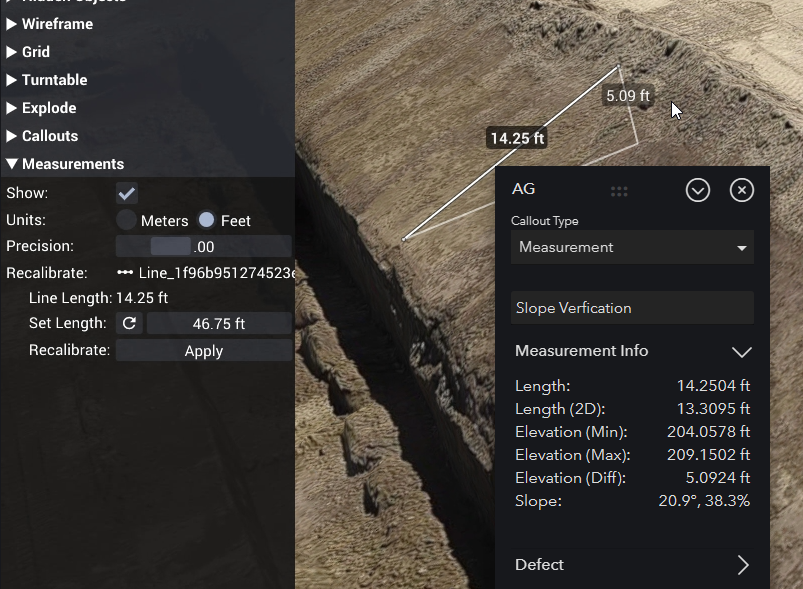
When a user clicks an annotation of type Polyline - Measurement / Defect Window, a window with that measurement’s information appears. Defect information can also be viewed or modified:
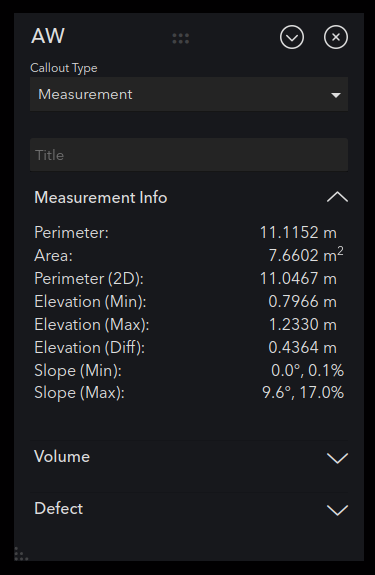
Users with edit access to an asset can use this window to change the measurement’s title and volume measurement parameters. These changes will be saved and used when others view the asset. Users with view-only access to the asset can adjust volume measurement parameters, but these changes will not be saved. They have view-only access to the measurement’s defect information.
Use the annotation's option to copy its URL to the clipboard. Opening that URL navigates to the annotation's bookmarked view. If a polyline has no bookmark, Nira frames the polyline in the 3D viewer instead.
The dropdown in the window's upper right corner also offers several functions:
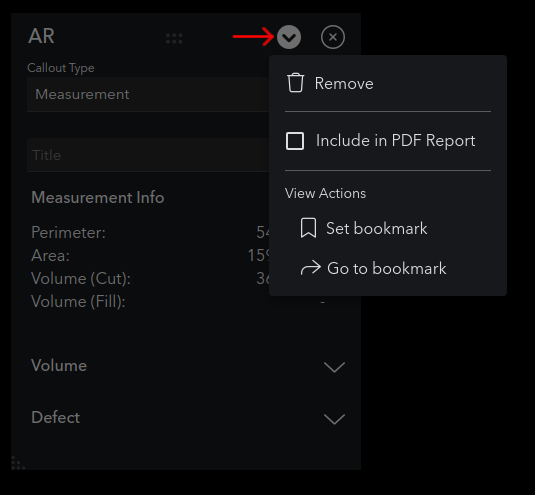
- Remove: Deletes the measurement.
- Include in PDF Report: Controls whether to include this measurement in the PDF Inspection Report.
- Set bookmark: Captures the view's current position for later usage with the Go to bookmark button.
- Go to bookmark: Immediately shifts the 3D view to the position saved using the Set Bookmark button.
For Polyline - Measurement / Defect Window, the Defect > Severity Level selection also controls the color of the measurement in the 3D view.
You can edit source units, display units, precision, and calibration in Measurement Options. To open the measurement settings, select a measurement and click Edit Mode > View Options > Measurements...
Source Units describes the units used to author your file. Choose Millimeters, Centimeters, Meters, Inches, Feet, or Feet (US Survey) to apply the correct scale to measurements, including areas and volumes. Display Units independently controls whether measurements are shown in Metric or Imperial units.
Manual calibration is still available for unusual cases. When you calibrate manually, Source Units shows the custom calibration instead of overwriting it.
Polylines also have an adjustable thickness setting to make their lines easier to see on your model. Callouts and measurements can be created and edited in Compare mode.