Collision Surfaces (COLL)
Generate a collision surface so walk mode stops at walls and floors, pick the right model units, and see why a file was skipped or failed.
Written By Nira.app
Last updated 16 minutes ago
⚠️ Preview feature: Collision surfaces are a preview feature. They may change or be removed in a future release. Feedback is welcome through support.
A collision surface stops the camera from passing through walls and floors in walk mode. Assets that have one show a COLL badge.
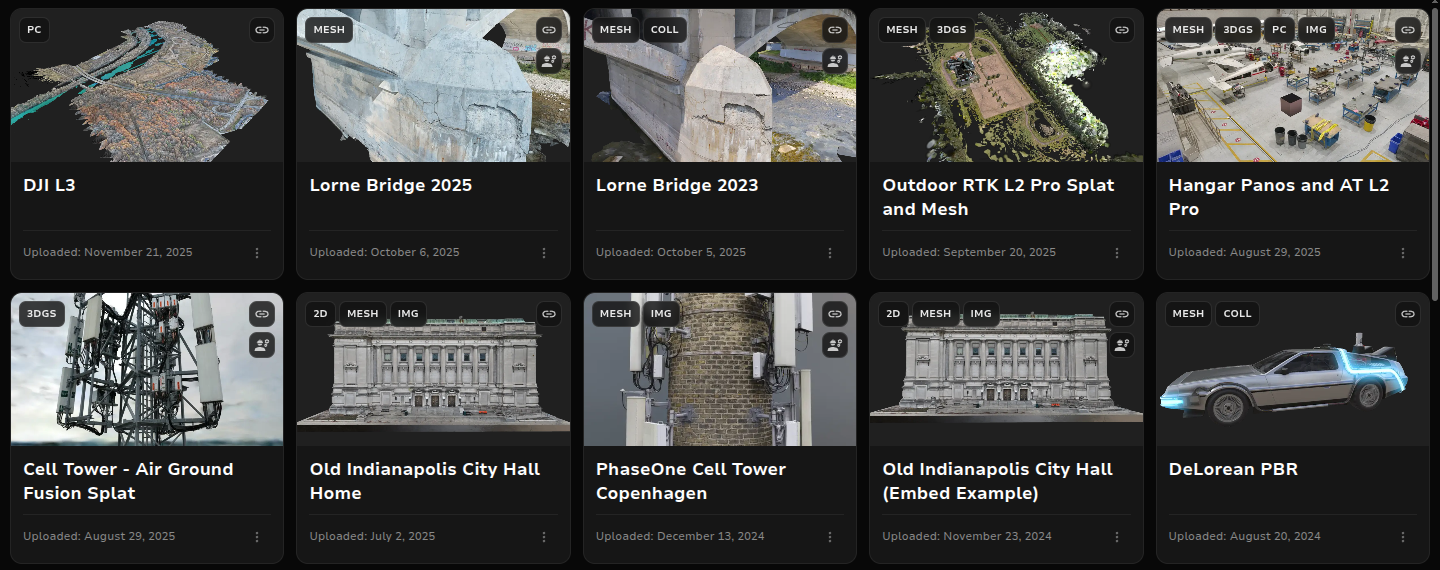
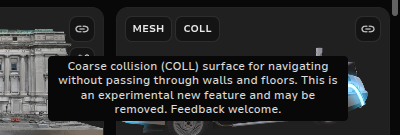
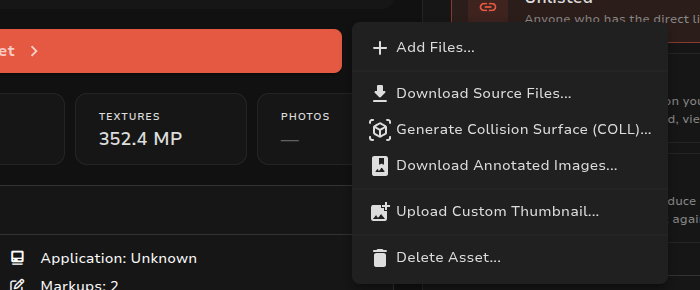
Nira creates collision surfaces automatically when you upload 3D files on a qualifying plan. Use Generate Collision Surface (COLL)... to create one for an older asset, or to recreate one whose model units were wrong.
Prerequisites
A Professional, Growth or Enterprise plan (or collision surfaces enabled for your organization by Nira). On other plans the menu item offers an upgrade instead.
You are an organization admin, a team member, the asset's creator, or a contributor with access to the asset. Viewers and guests do not see the menu item.
The asset contains at least one 3D file. Camera trajectories, design overlays such as DXF drawings, and volumetric video are not processed.
Generating a collision surface
Open the asset.
Open the actions menu and choose Generate Collision Surface (COLL)...
Check how many 3D files the dialog will process. If there are none, it says there is nothing to generate.
Choose the model units (see the next section).
Click Generate.
Nira opens the Jobs page on the Collision Surfaces tab. Generation takes a few minutes, longer for large assets, and replaces any existing collision surface.

Choosing the model units
The collision surface is built at real-world scale, so the unit must match the model. A model in millimeters read as meters comes out 1,000 times too large.
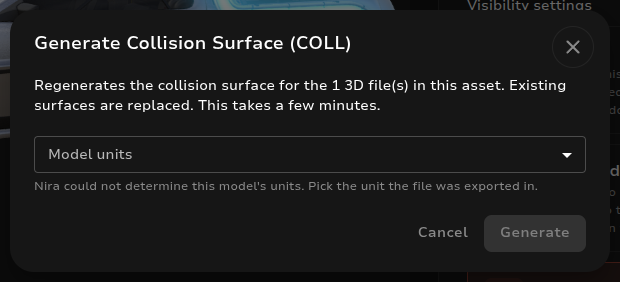
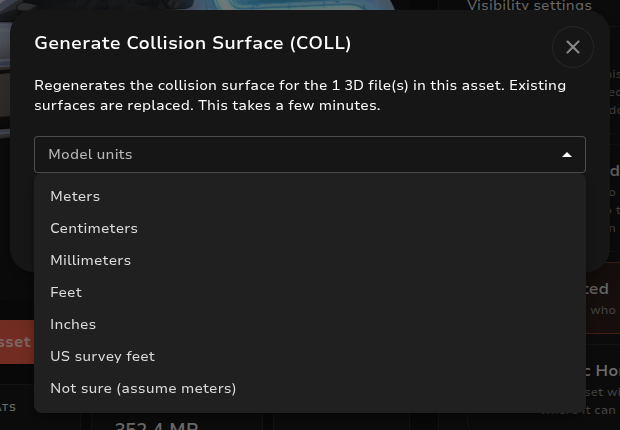
Pick a value under Model units: Meters, Centimeters, Millimeters, Feet, Inches, US survey feet, or Not sure (assume meters). Generate stays disabled until you pick one.
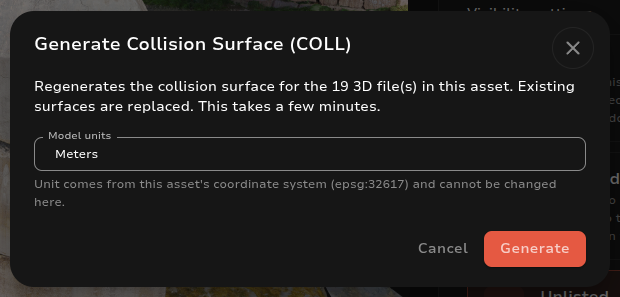
For a georeferenced asset, the unit is shown read-only: "Unit comes from this asset's coordinate system (EPSG:xxxx) and cannot be changed here."
ℹ️ Note: With Not sure (assume meters), a model that is too large to be in meters is skipped instead of guessed. Generate again and pick the unit.
Checking the result
Jobs page

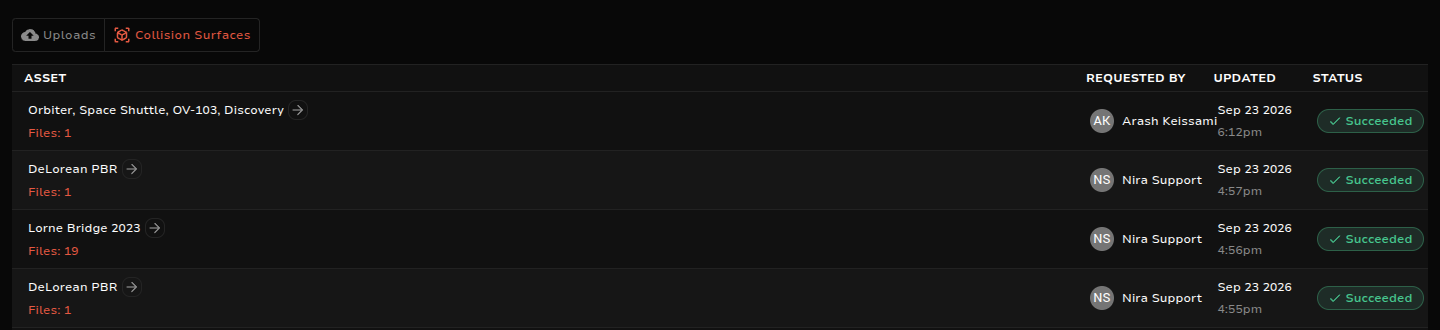
Each row on the Collision Surfaces tab of the Jobs page shows:
The asset name, with an arrow button that opens the asset
A Files: N link that opens the file list
Who requested it, when it was updated, and its status. An Error status has an i button that opens the file list.
When the job finishes, the person who started it gets an email titled "<asset> collision surface generated", "unchanged" or "generation failed", with links to the asset and the Jobs page. It is sent only if upload notification emails are on in your notification preferences.
File list
The Collision Surfaces dialog lists each 3D file in the asset.
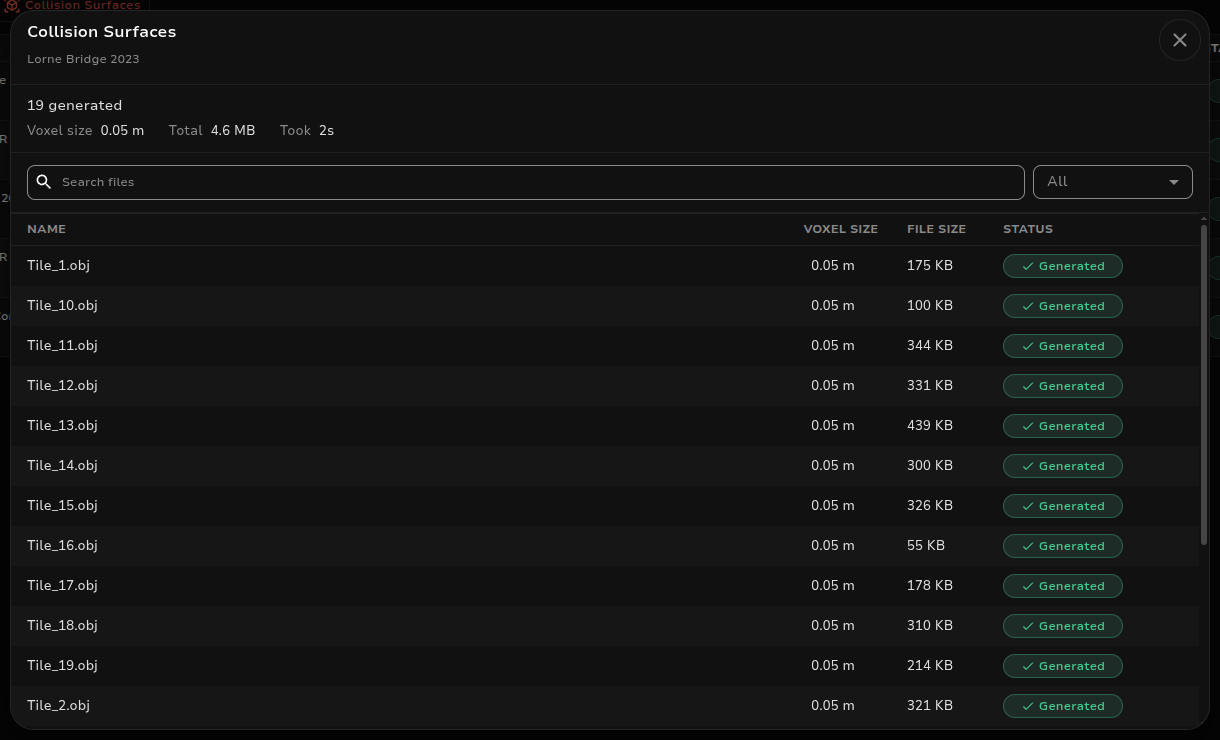
The first line counts files by status, for example "18 generated, 3 unchanged, 2 skipped, 1 failed".
The second line shows the Voxel size (or Voxel sizes when files differ), the Total size of the collision data, and how long the job Took.
Failed files are listed first, then skipped, generated and unchanged. Use the search box and status filter to find a file.

Hover the i next to a status to see the reason.

Voxel size is the size of the cubes the collision surface is built from. The standard size is 0.05 (in meters when the unit is known). An i next to a voxel size means larger voxels, and less detail, were used because the model is very large.
Large jobs list up to 200 failed and 200 skipped files by name, then a row such as "and N more skipped files not listed".
Why a file was skipped or failed
Tips
Open the asset again after the job finishes. The new collision surface is used the next time the asset is opened.
Only one generation per asset runs at a time. If you click Generate while one is running, the dialog tells you it is already running.
If a file is skipped as Too small or Too large, check the unit first, then generate again.