Create a 3D Callout
Written By Nira.app
Last updated About 4 hours ago
The 3D Callout Tool lets you create clickable circles or text boxes on any asset:
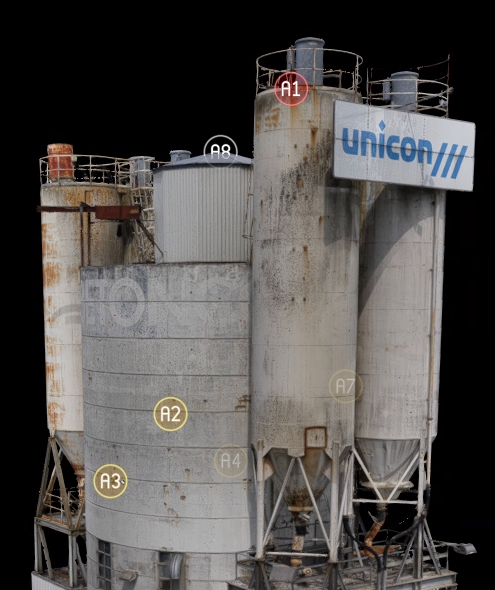
An asset with callouts
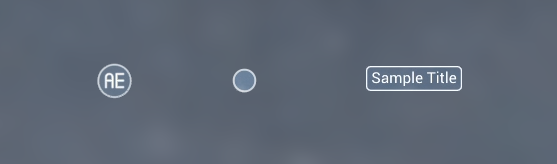
The available Callout View styles: Callout ID, Circle, and Title
To create a 3D callout
To create a callout, you must either have edit access to the asset or be accessing it through an Inspection link.
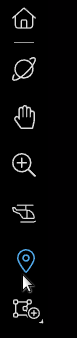
1. Enter the 3D callout tool by pressing the callout tool button.
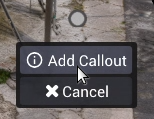
2. Click the desired location on the asset and select “Add Callout” from the menu:
3. A window will appear:
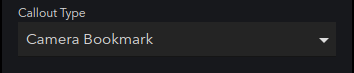
4. Select one of the following 3D callout types:
Your choice controls what type of window is displayed when a user clicks your callout. Click the links above to learn more about each Callout type.
Use the annotation's option to copy its URL to the clipboard. Opening that URL navigates to the annotation's bookmarked view.
3D Callout - Basic Text also has an optional description field. Its text is shown in both the 3D viewer and the 2D ortho viewer. You can create and edit callouts and measurements in Compare mode.