Release Notes
Explore new features, improvements, and fixes across Nira. Updates are grouped by month, with the most recent first.
Written By Nira.app
Last updated 9 days ago
Screenshots show the interface when each update was recorded. Historical pricing shown in screenshots is not a current price list.
September 2026
Inspect photo metadata
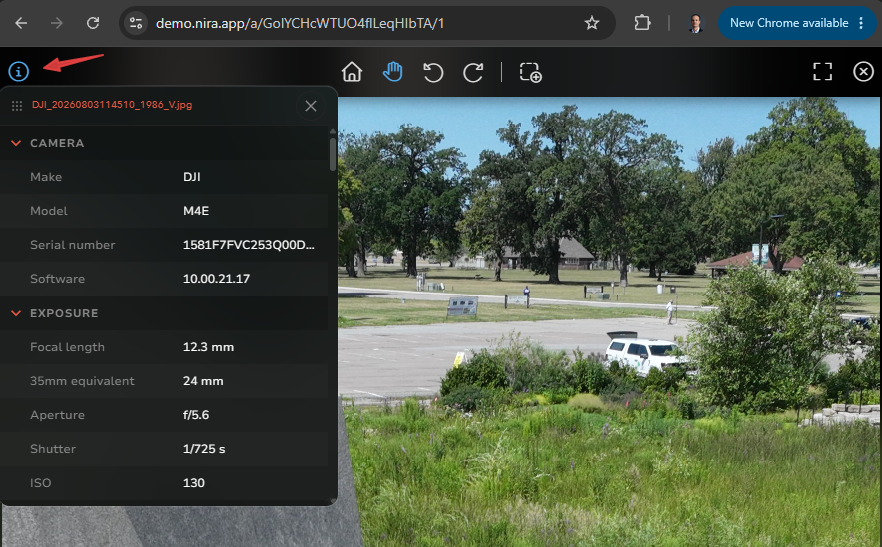
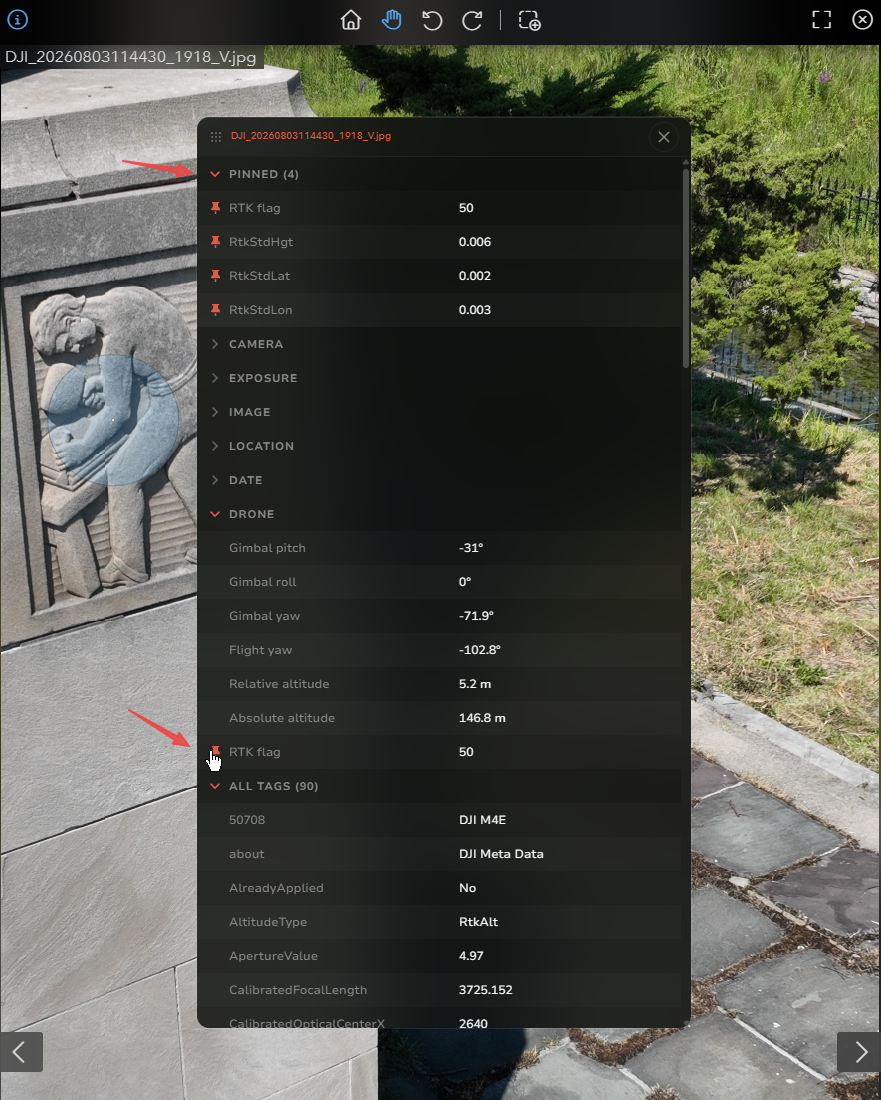
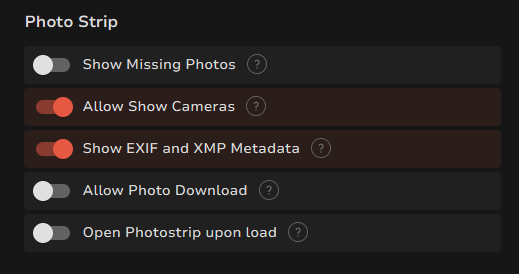
Open the photo viewer’s Info window to see EXIF and XMP metadata. Move or resize the window, and it updates as you switch photos. Pin the attributes you use most to keep them together; pins reset when you reload the asset. The Info button is enabled by default and can be disabled in Share Options.
Choose which assets appear in a timeline
Location tags now include an Add to Timeline checkbox. It is off by default for new assets and remains on for existing assets, preserving current timelines.
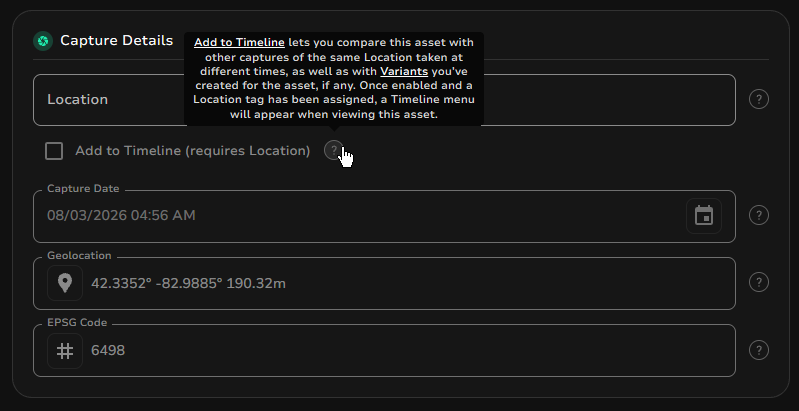
Use Add to Timeline in Capture Details to control timeline participation.
August 2026
Find and manage your assets
Browse and download an asset’s files
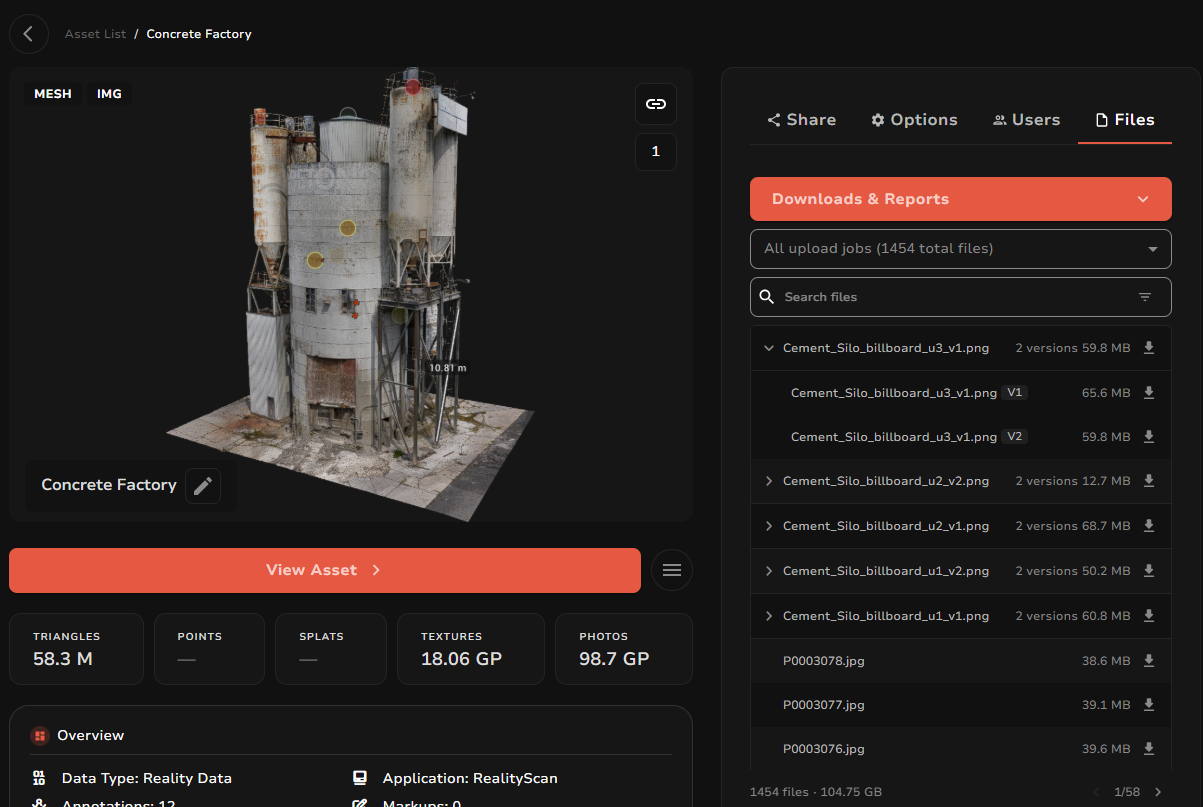
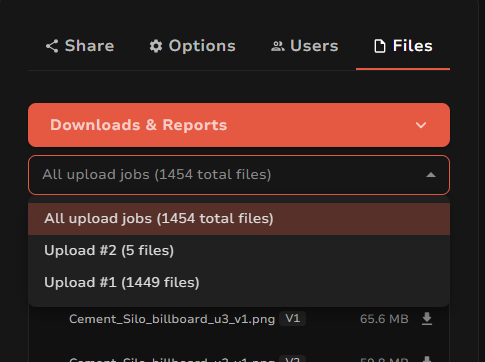
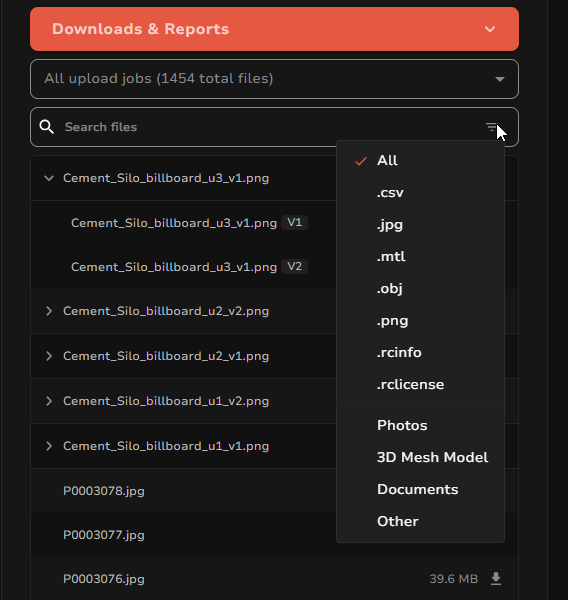
The new Files tab on the Asset Preview page lists files by upload job, including previous uploads. Filter by category or extension, download individual source files or category ZIP archives, and download annotated images and PDF inspection reports. You can also generate PDF reports directly from the tab. The Files tab is available on all plans; downloads require Growth or higher. On an eligible plan, Admins and Team Members have download access; Contributors and External Guests need permission from an Admin or Team Member.
Search by more asset attributes
Advanced asset filters include triangle count, file count, visibility, uploader, and upload date. The Filename filter searches files inside your assets. Enter multiple filenames or extensions to find assets matching any of them.
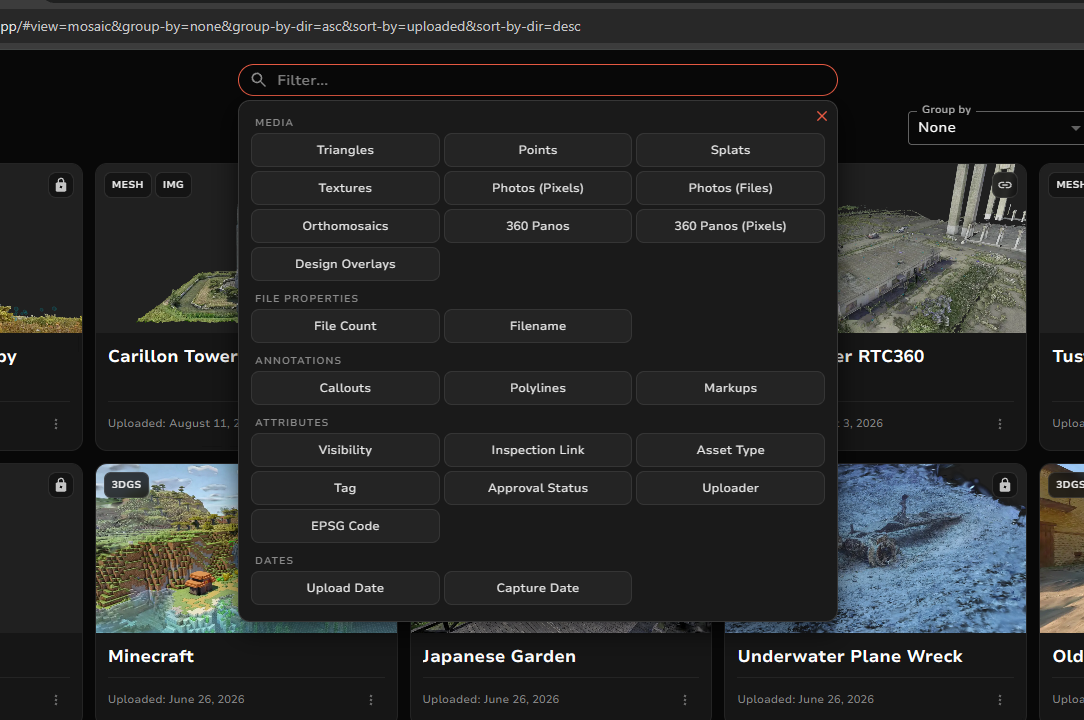
Choose asset filters for media, files, annotations, attributes, and dates.
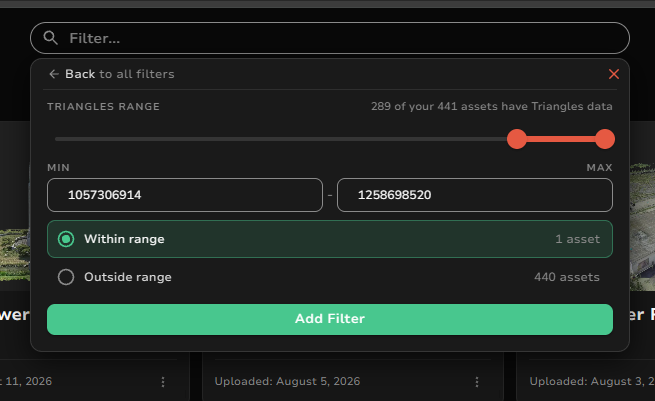
Set a triangle-count range and choose matching assets inside or outside it.
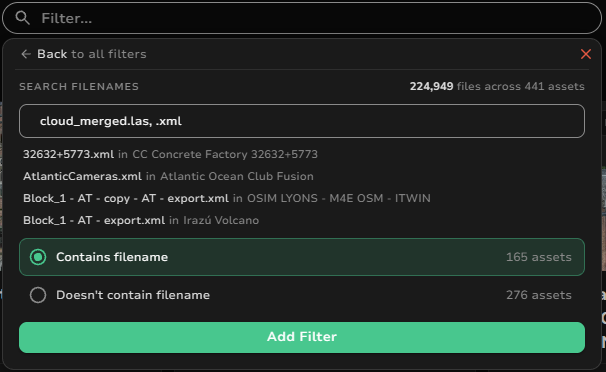
Enter multiple filenames or extensions to find matching assets.
See storage costs per asset
A new cost calculator shows an asset’s monthly storage cost with a breakdown. Sort assets by cost to understand where your storage spending goes.
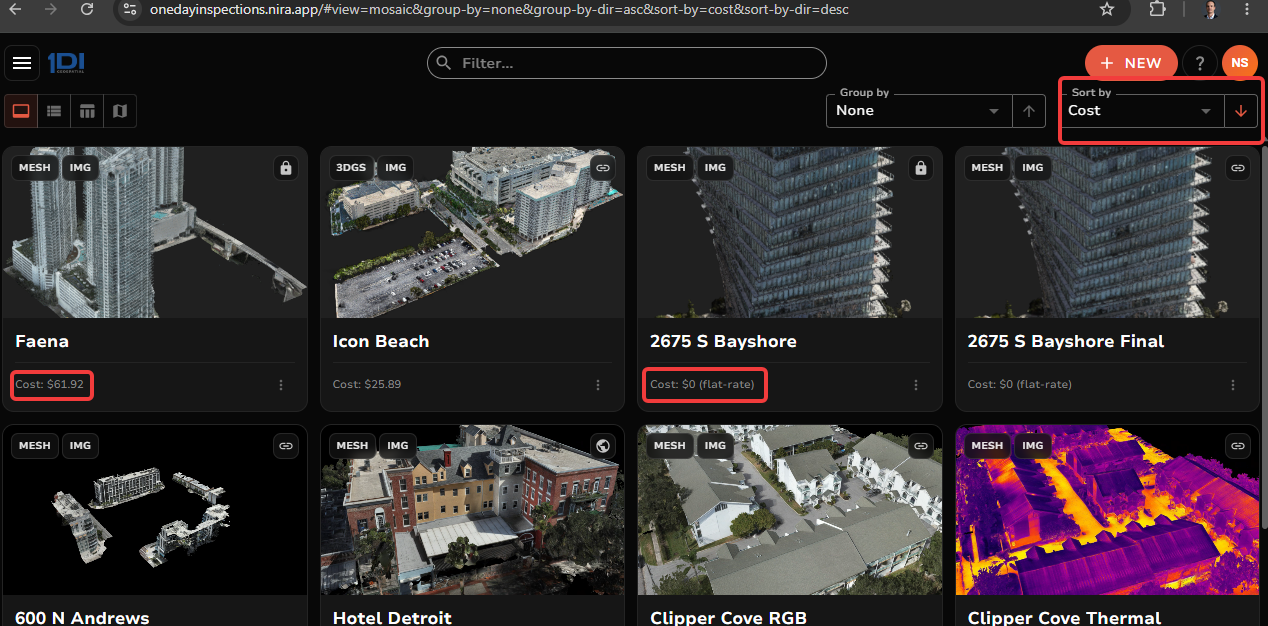
Sort the asset grid by storage cost. Amounts shown are historical examples.
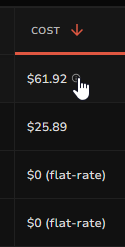
The list view also shows an asset cost column.
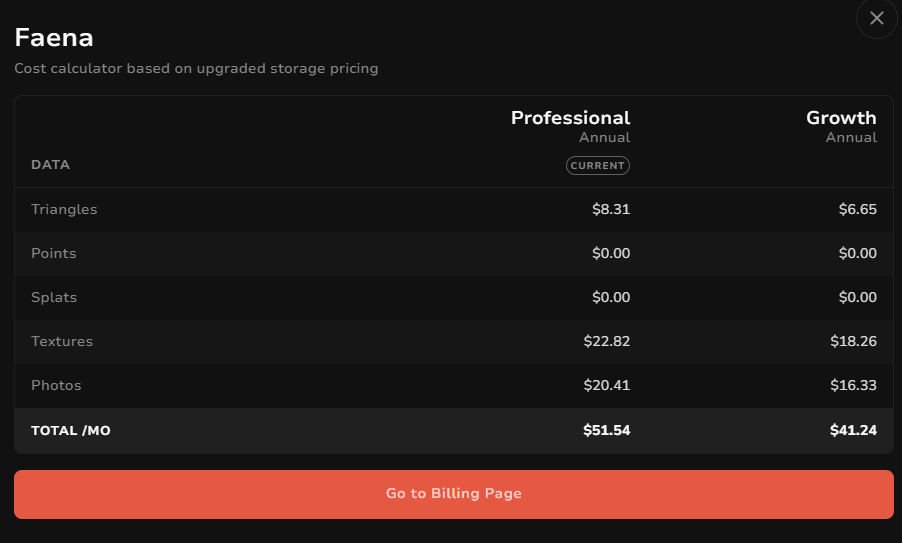
Open an asset’s cost breakdown by data type. Prices and plans shown are historical.
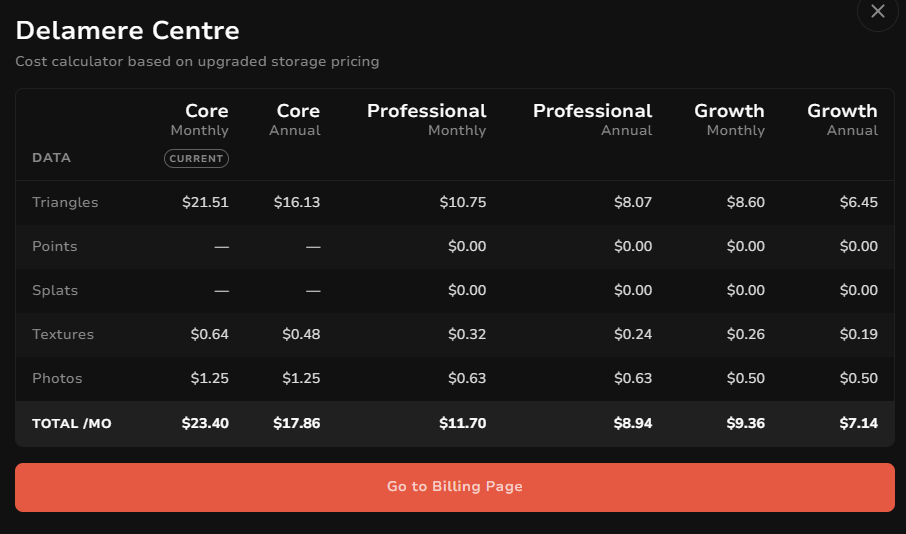
Compare the illustrated storage breakdown across billing options. Prices and plans shown are historical.
Navigate and share your views
Save camera positions with View Variants
Save, revisit, or remove a variant’s camera position from Manage View Variants. Selecting that variant restores its saved position. When the default variant has a saved position, the asset opens there; otherwise, it opens at the Starting View. Read the changelog post.
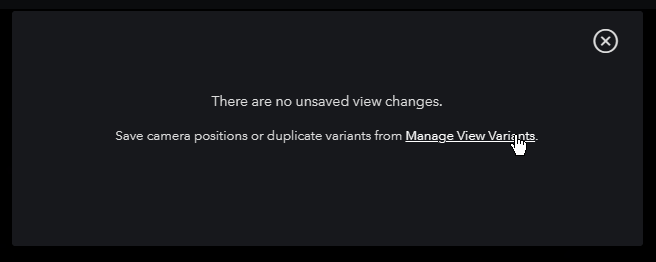
Open Manage View Variants to save camera positions separately from other view changes.
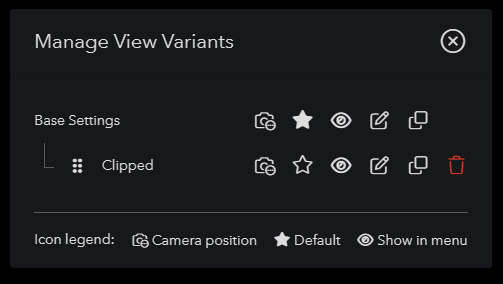
Use the camera-position icon beside a variant in Manage View Variants.
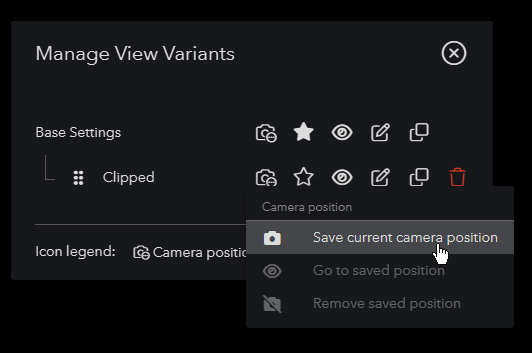
Save the current camera position from the variant’s camera menu.
Duplicate View Variants
Start from an existing variant’s view settings, then give the copy a different camera view to create a set of named viewpoints.
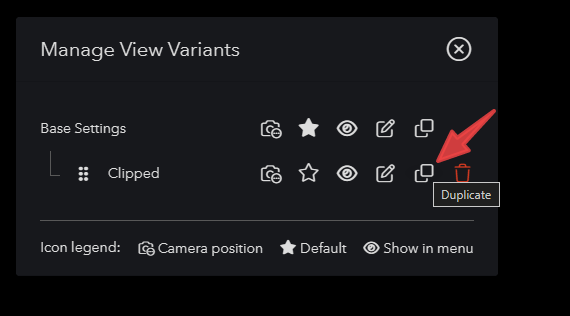
Duplicate an existing variant from Manage View Variants.
Give viewers camera controls
Enable Camera View Settings in the asset’s share options to let viewers switch camera views and adjust the field of view. This control is off by default.
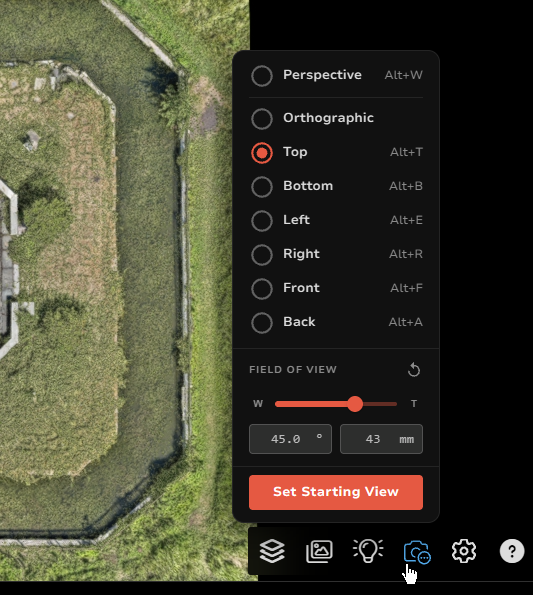
Camera View Settings provides camera views and field-of-view controls.
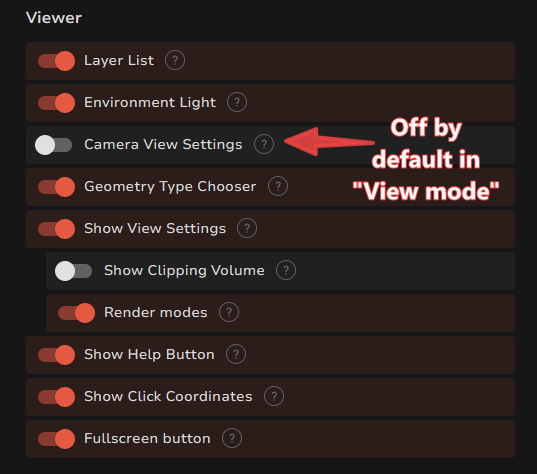
Enable Camera View Settings in share options to make it available to viewers.
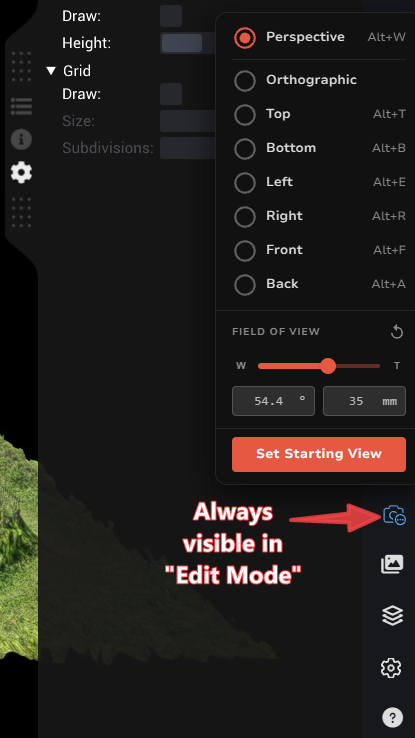
Camera View Settings is available in Edit Mode.
Find objects that are far apart
New Go to... buttons help you navigate to objects when their spacing makes the scene appear empty at the current zoom level.
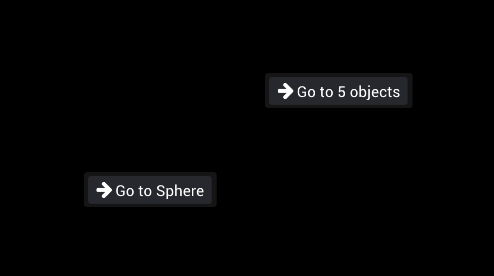
Use Go to… buttons to jump to distant objects.
Use panoramas alongside meshes and Gaussian splats
Upload panoramic images using JPG and CSV files alongside mesh or 3D Gaussian splat data. Panorama settings are now separate from point cloud settings, so you can hide point clouds while keeping panoramas visible.
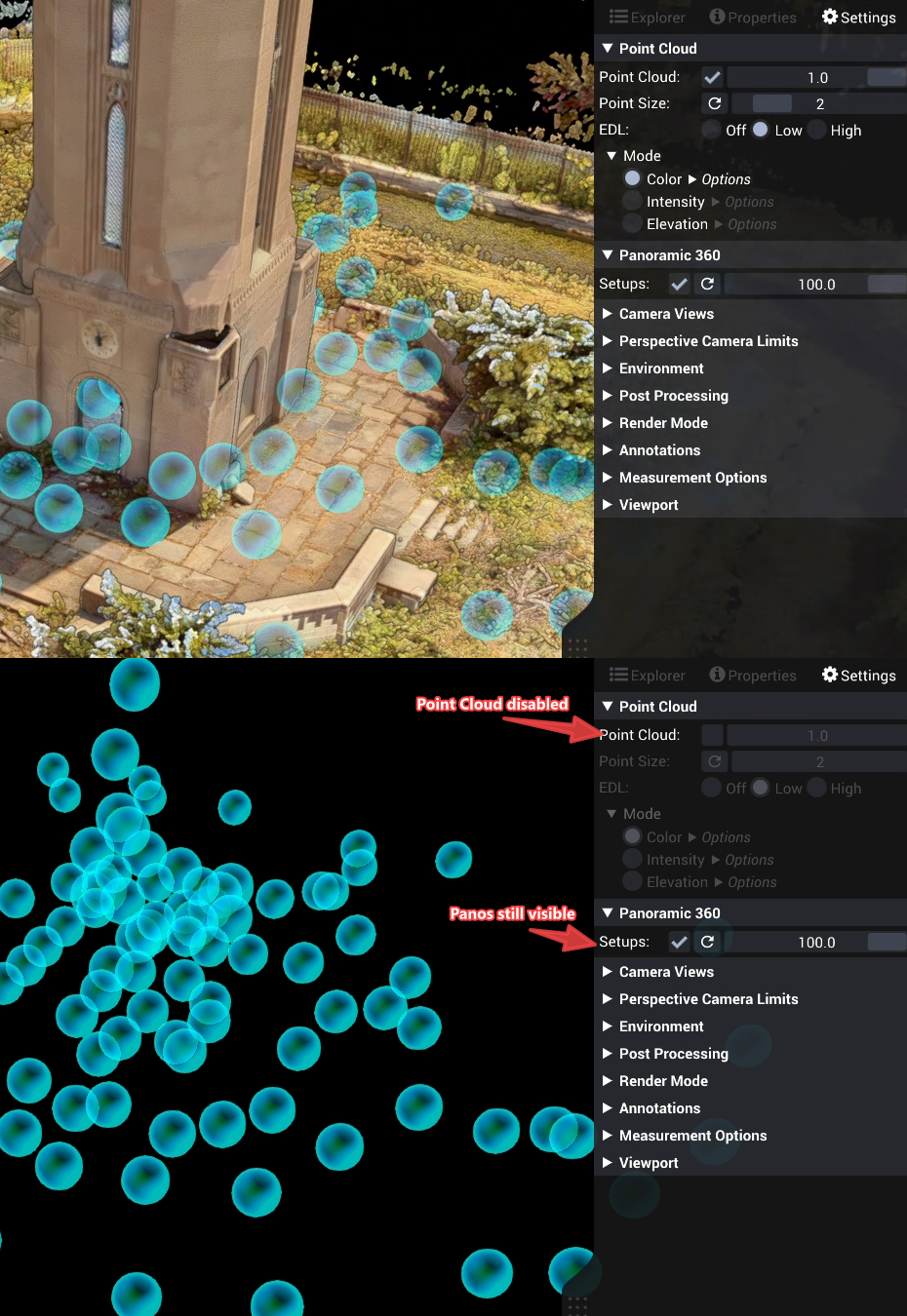
Panorama positions remain visible when the point cloud is turned off.
Filter panorama positions
Horizontal and vertical distance filters help you find nearby panorama positions. A Show Names option lets you hide position names on hover.
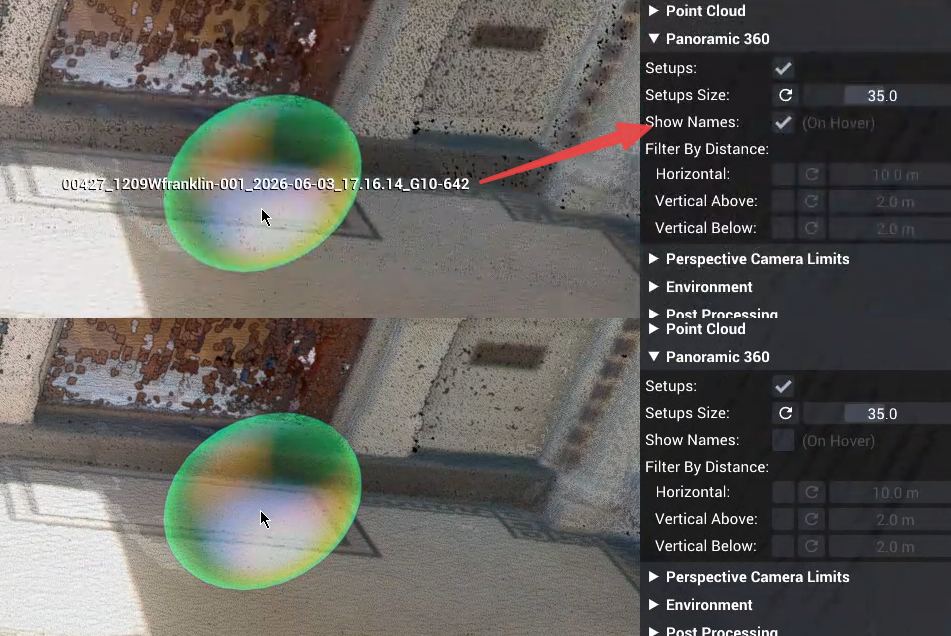
Turn Show Names off to hide panorama-position names on hover.
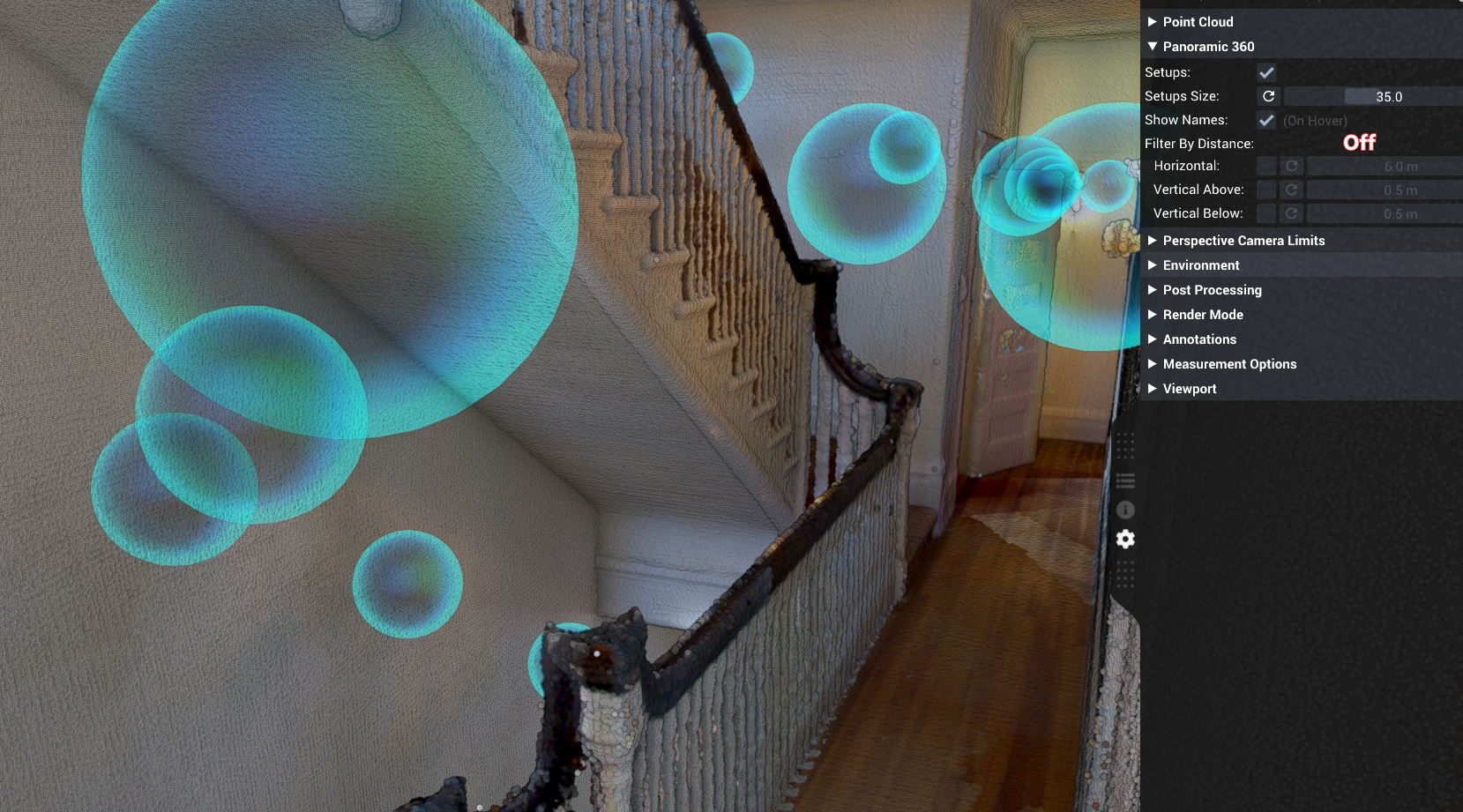
Before filtering: panorama positions appear across multiple distances and heights.
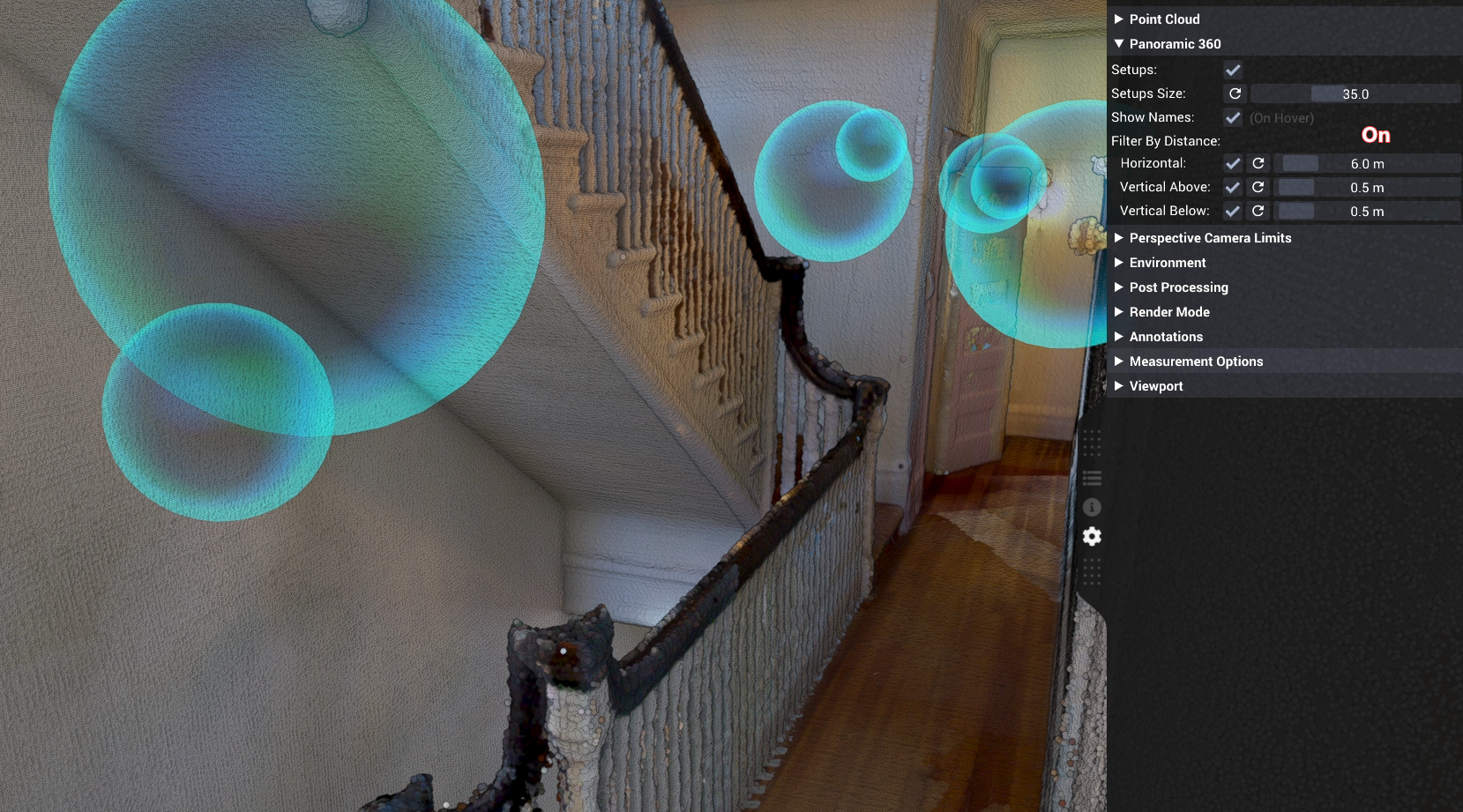
After filtering: only positions within the selected distance limits remain.
Use a more consistent viewer interface
Camera View Settings, View Settings, Geometry Chooser, and environment lighting controls now share a consistent design. Turntable controls have moved to the web interface; viewers can still toggle rotation with Alt+L, while editors control its speed. To open a texture in the 2D viewer, use its right-click menu.
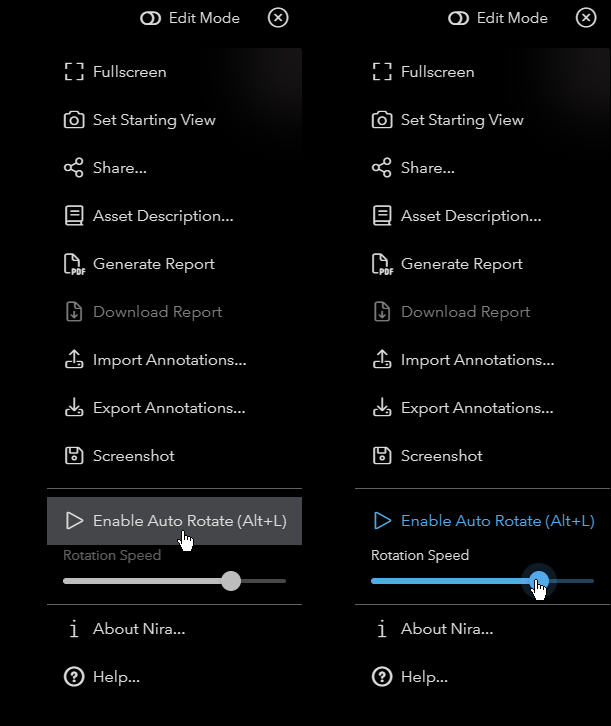
Turntable controls appear in the viewer menu, with rotation speed available to editors.
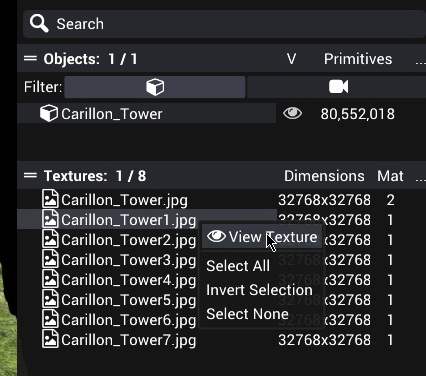
Right-click a texture and choose View Texture to open it.
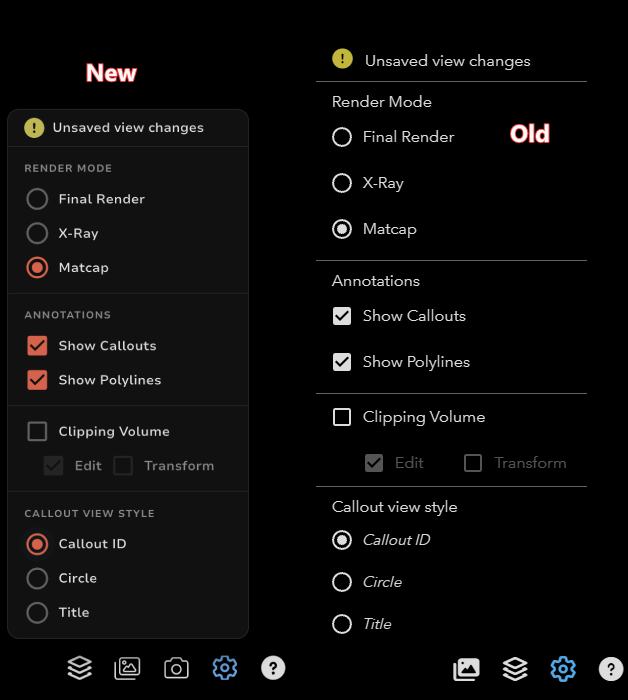
The updated View Settings menu uses the same style as Camera View Settings.
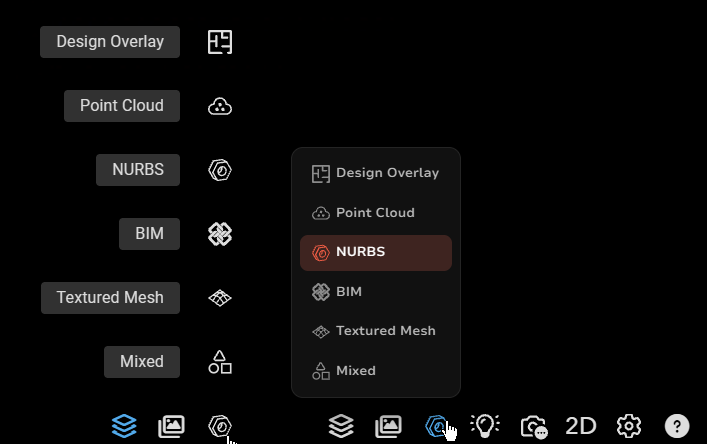
Geometry choices now appear in a consistent menu.
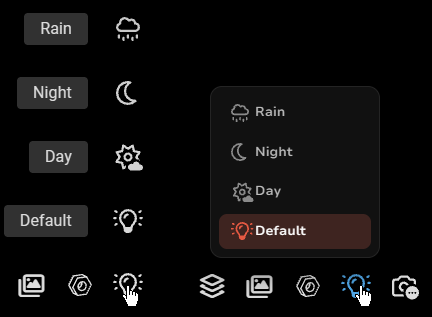
Environment lighting choices use the updated menu design.
Measure and inspect
Set your model’s source units
Choose Source Units in Measurement Options to apply the appropriate scale conversion without manually calibrating against a known distance. Source Units and Display Units can be set independently. Read the changelog post.
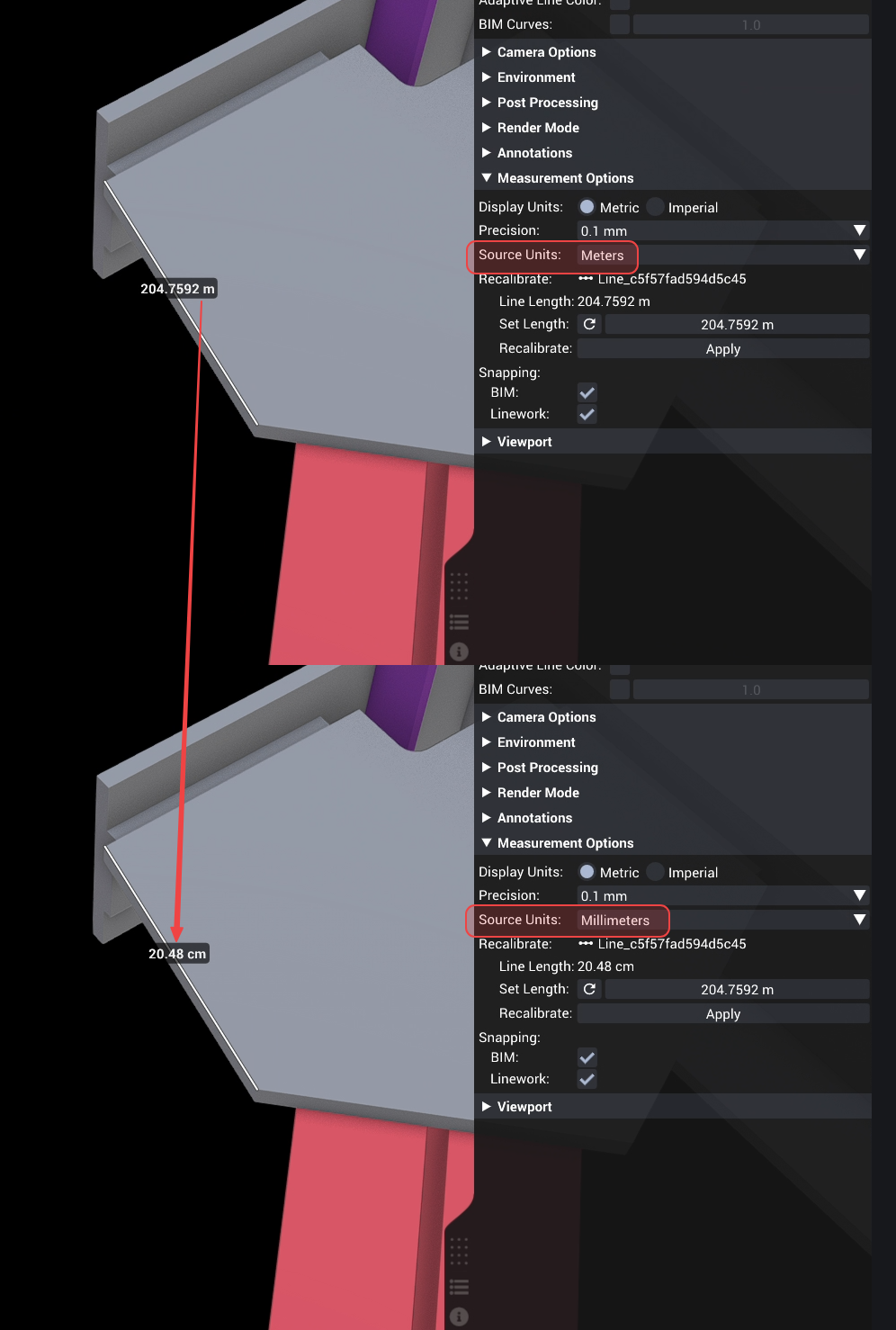
Changing Source Units applies the appropriate measurement scale conversion.
Keep annotations visible through geometry
The Always Visible occlusion style keeps annotations and measurements visible at full strength when they are behind your model. It joins the existing Hidden and Faded options. Read the changelog post.
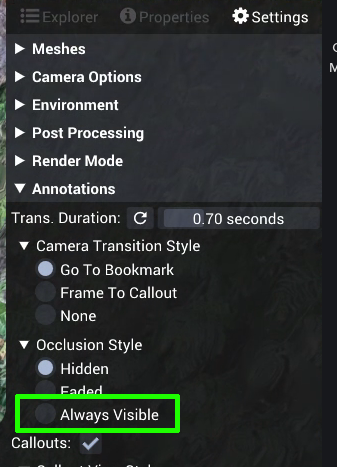
Choose Always Visible in the annotation occlusion settings.
Improved coordinate system detection
Nira now recognizes compound coordinate systems in photogrammetry metadata and supports ESRI: coordinate system codes. These improvements help supported uploads georeference correctly and use the right measurement scale. Read more about compound coordinate systems and Esri codes.
Smoother DXF linework in map view
Drawing performance has improved for complex vector layers, reducing stuttering and freezing on high-resolution screens.
Rotate photos while inspecting them
Use Rotate Photo 90° Left/Right in the photo viewer toolbar. Rotation is temporary and resets when you return to the image.
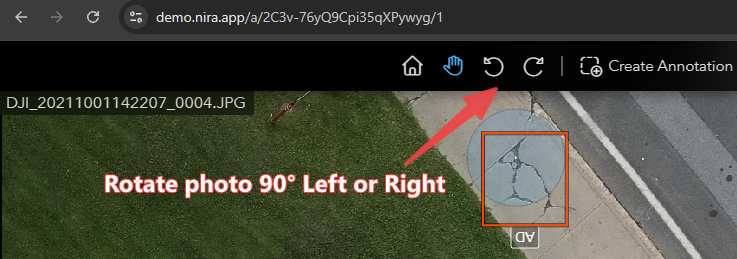
Rotate a photo 90° left or right from the photo viewer toolbar.
July 2026
A clearer photo viewer toolbar
The photo viewer starts with the Pan tool active. The annotation tool has a more distinct icon and a Create Annotation label. Dedicated zoom buttons have been removed; zoom using the scroll wheel, right mouse button, double-click or tap, or pinch gestures.

The updated toolbar appears below, with Pan active and a Create Annotation label.
Redesigned sharing dialog
The Share dialog has a refreshed interface.
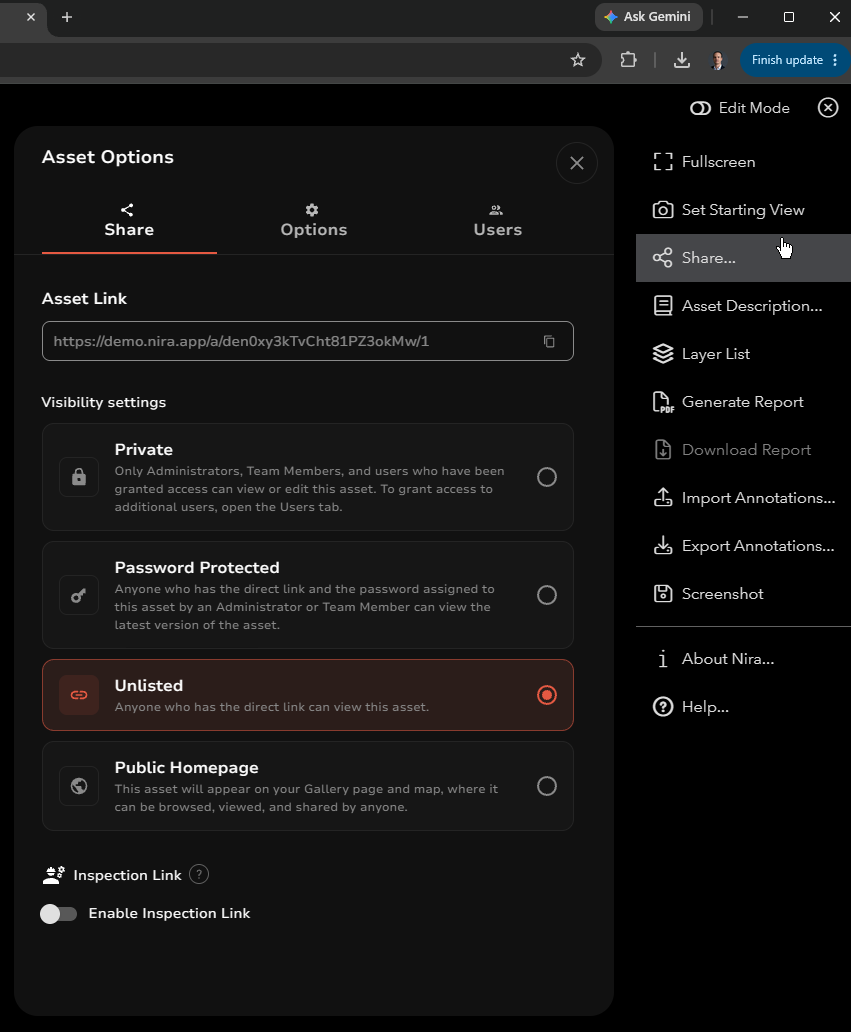
Open Share to use the redesigned sharing dialog.
June 2026
Adjust polyline thickness
Make lines easier to see against your model with an adjustable thickness setting.
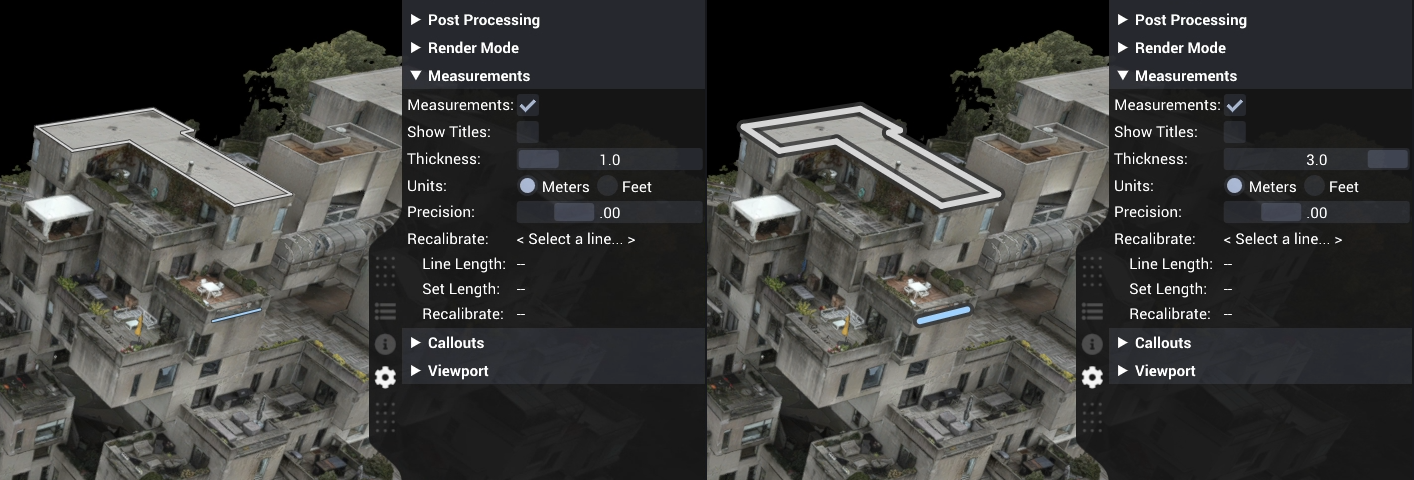
Increase polyline thickness to make measurements easier to see.
More point cloud color ramps
Eight additional color ramps are available for Intensity and Elevation rendering.
A clearer panorama icon
The panorama icon is now easier to distinguish from Teleport.

The updated panorama icon appears on the right.
May 2026
Filter photos by pattern
Use the thumbnail strip’s Filter button to filter photos with a regular expression.
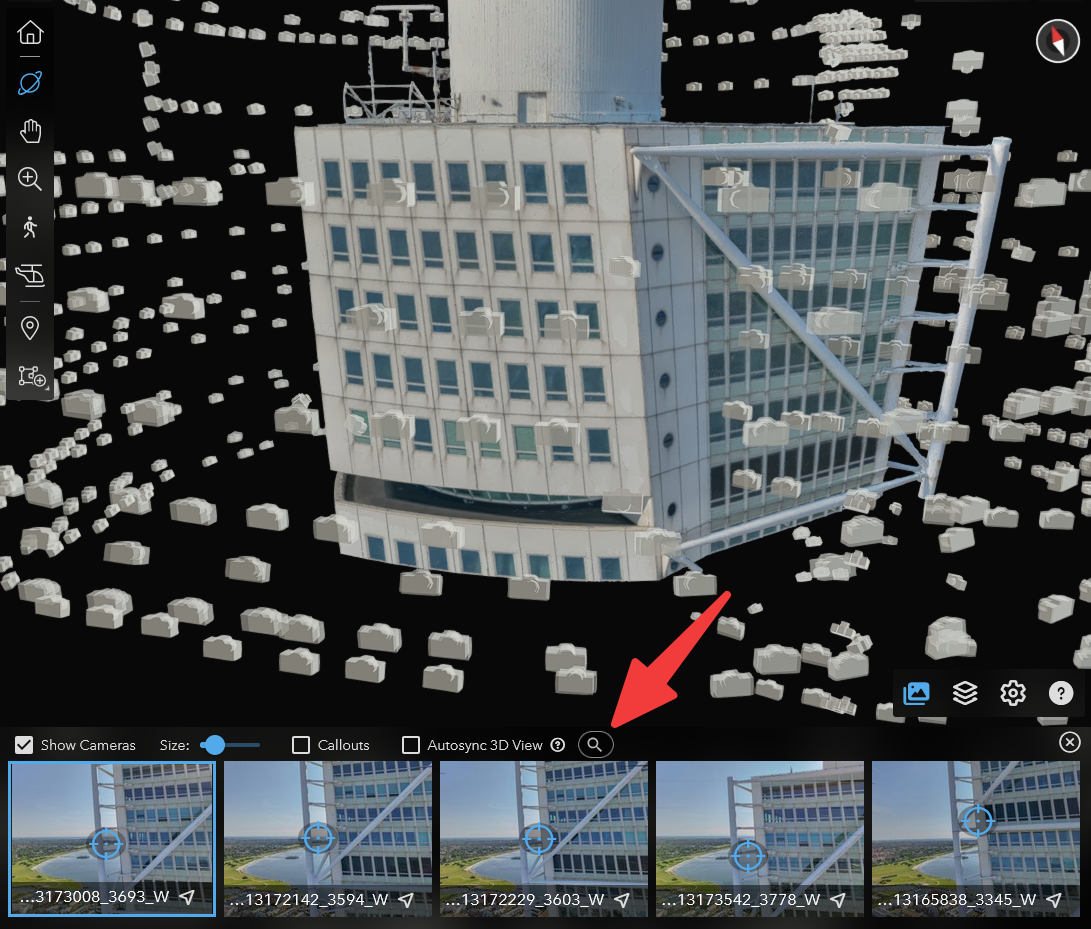
Open the photo filter from the thumbnail strip.
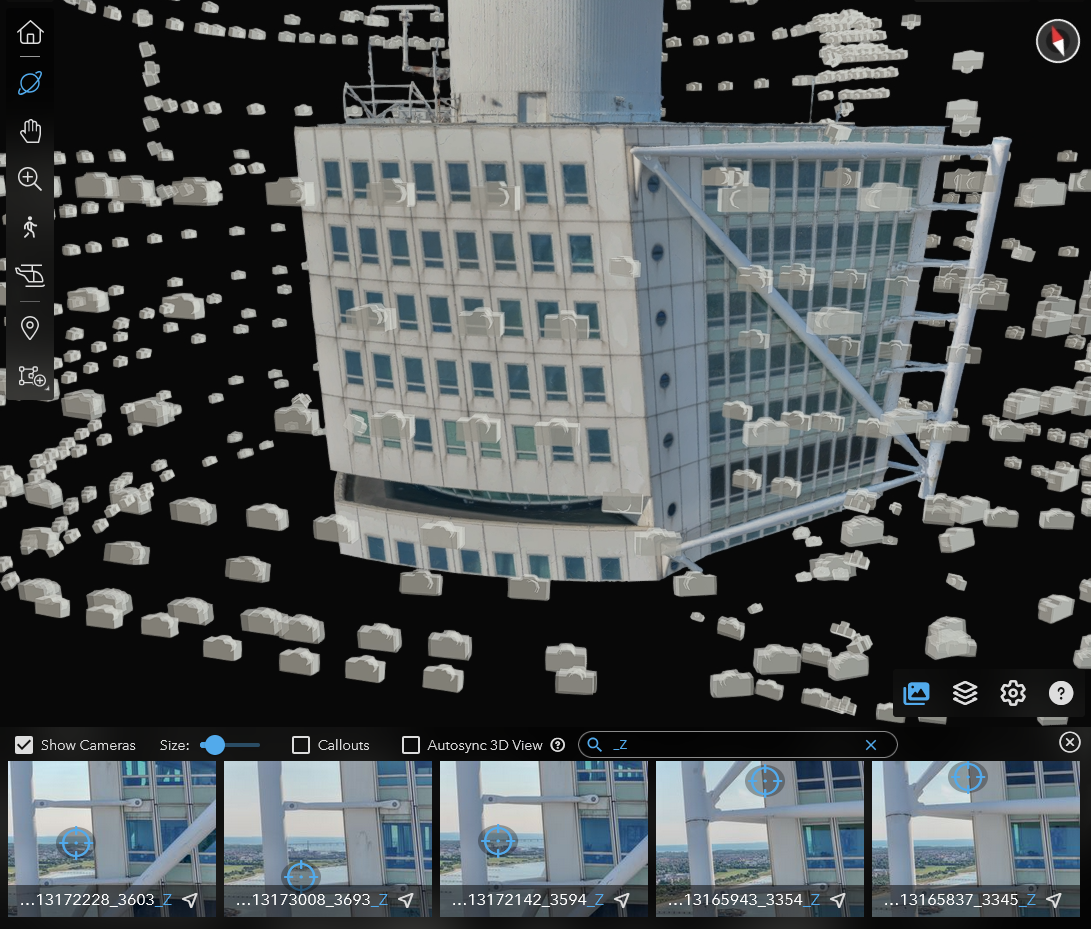
Enter a pattern to filter the photos shown in the strip.
A toolbar that fits smaller screens
Thumbnail strip controls move into a flyout menu when there is not enough space to show every button.
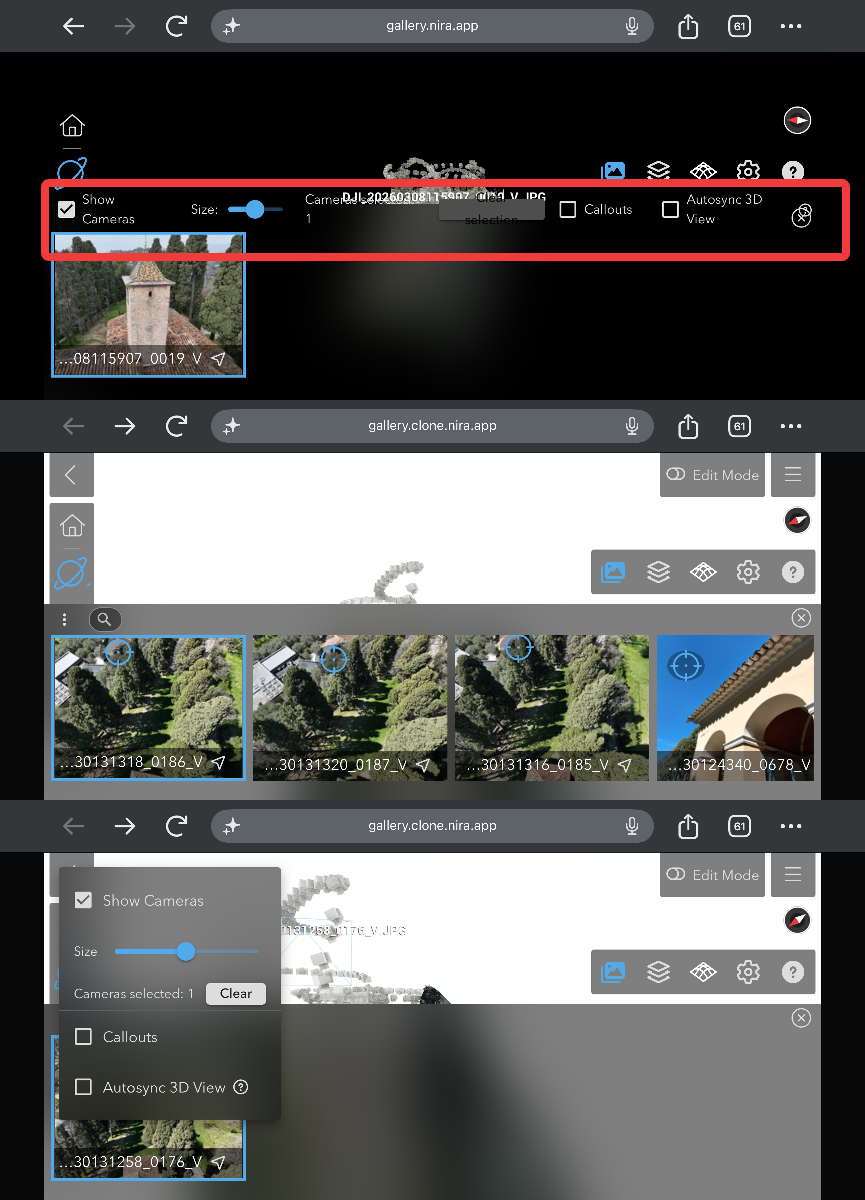
On smaller screens, thumbnail controls move into a flyout menu.
Clearer thumbnail loading feedback
Asset thumbnails now show an animated placeholder while their images load.
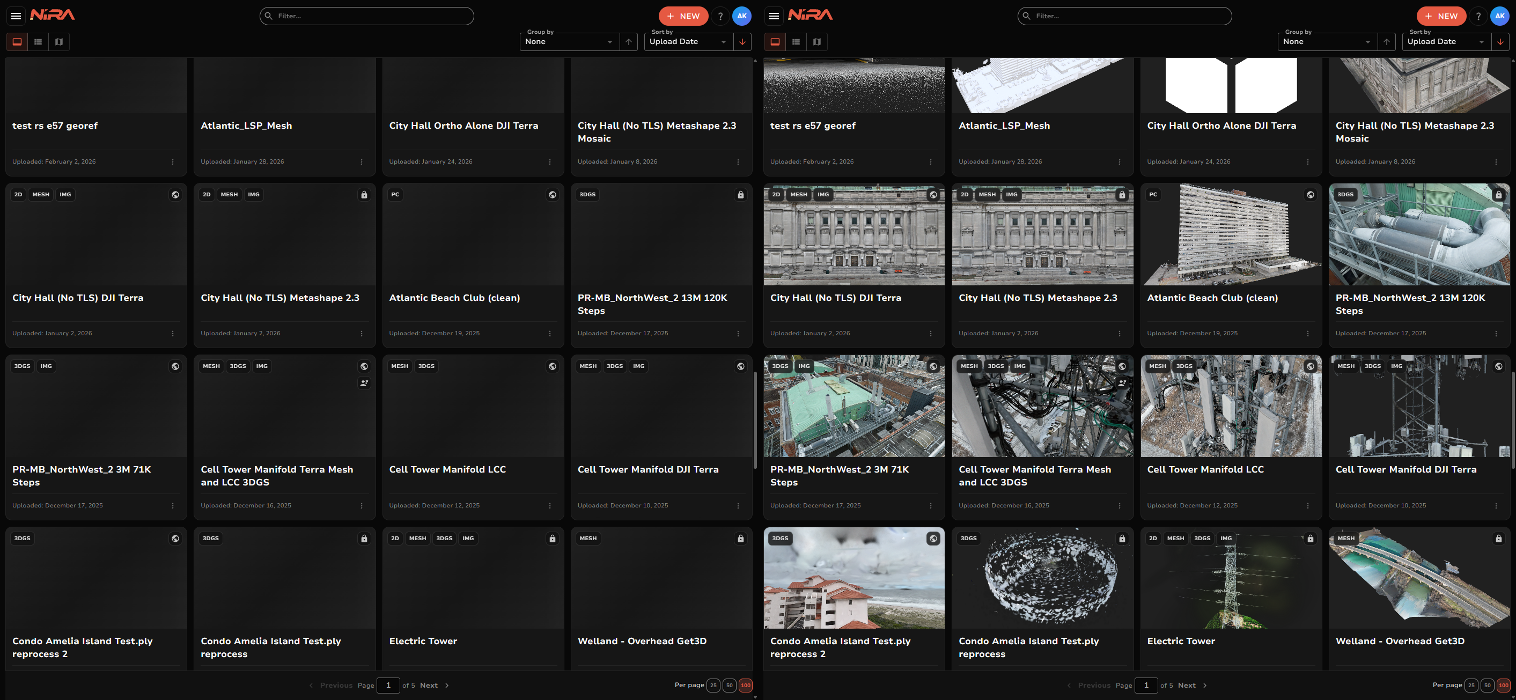
Thumbnail placeholders appear while asset images load.
April 2026
A redesigned Layers panel
A compact, dockable layout adds annotation visibility toggles and a focus button that opens an annotation’s saved view or frames the annotation. The color palette expands from 9 to 14 colors, with a color picker for custom colors.
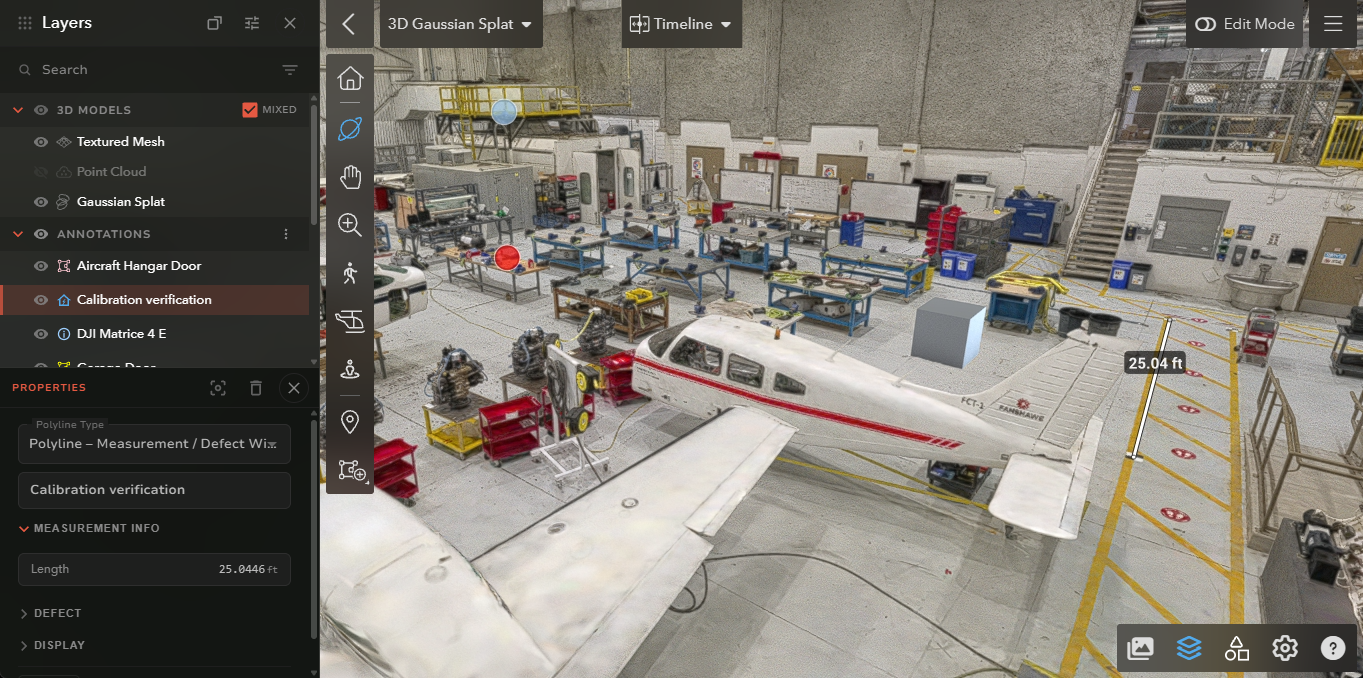
The docked Layers panel keeps annotations and their properties beside the model.
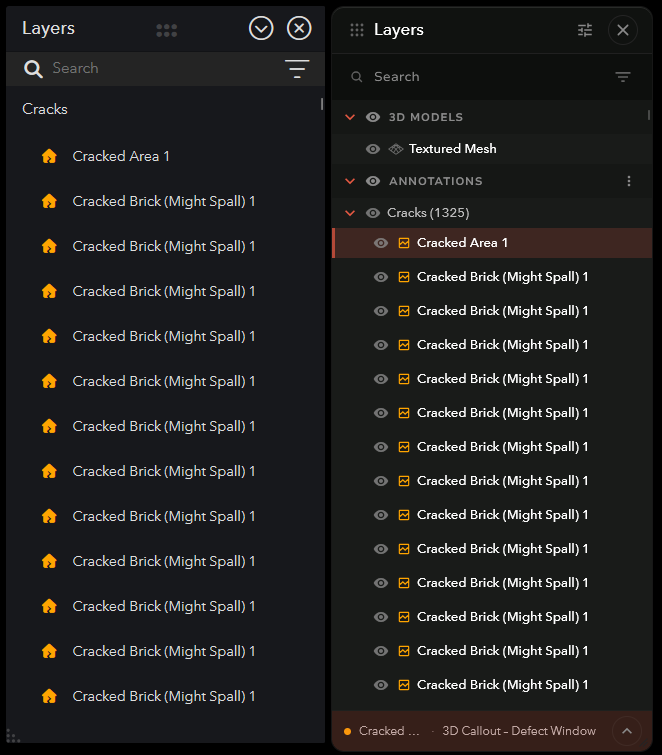
The redesigned Layers panel appears on the right.
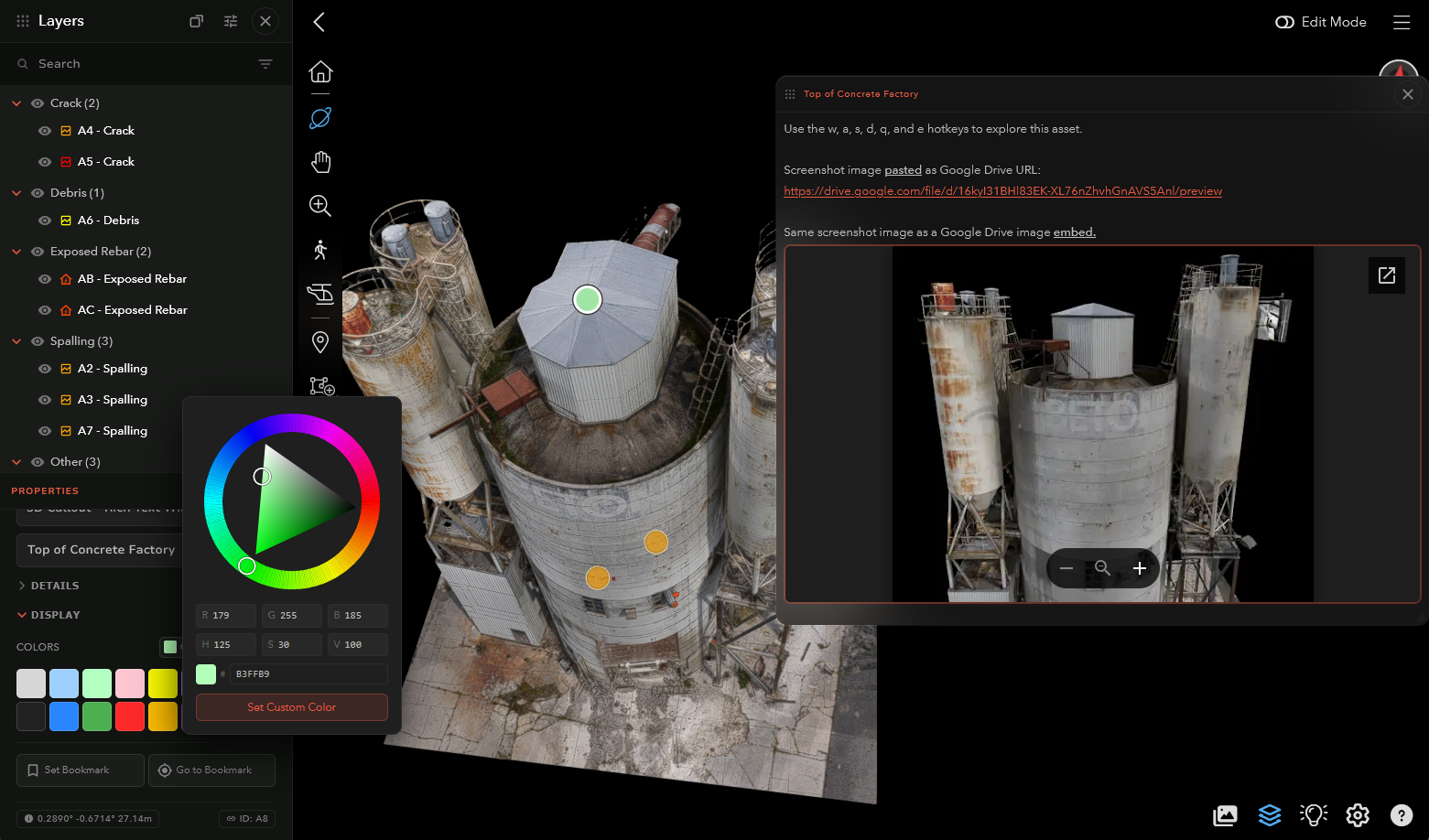
Choose annotation colors from the expanded palette or custom color picker.
X-Ray for more geometry types
X-Ray rendering now supports meshes, point clouds, and 3D Gaussian splats. The web View Settings menu includes X-Ray and Final Render modes.
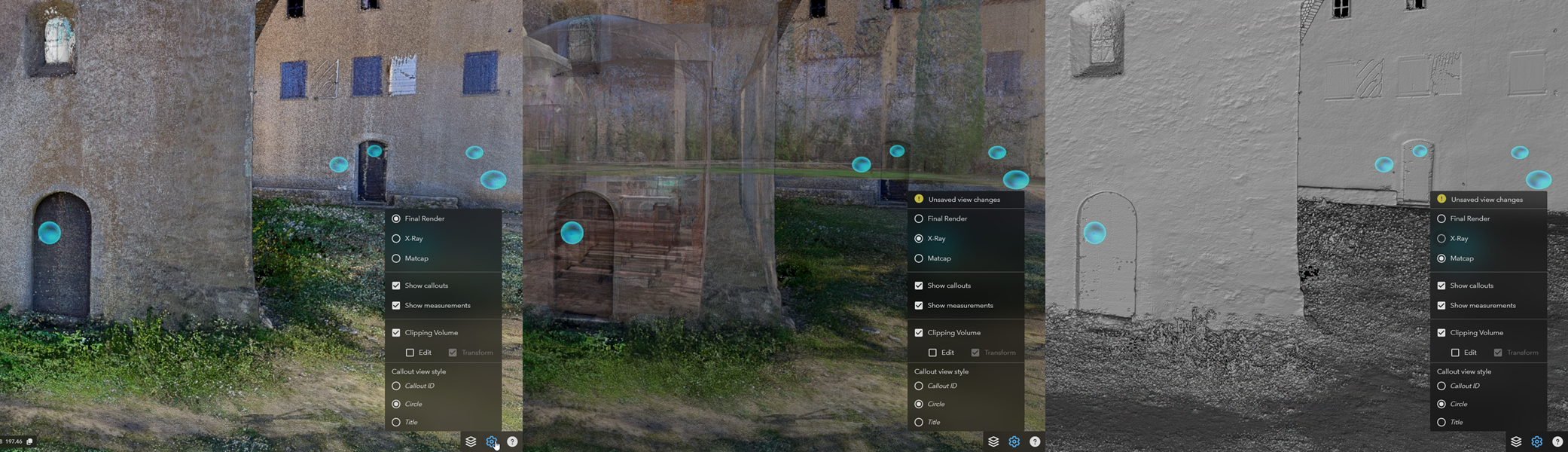
View Settings includes Final Render and X-Ray rendering modes.
Clearer annotation choices
Annotation menus now distinguish 2D and 3D callouts, polylines, and their text, defect, measurement, and rich text options. Basic Text callouts and polylines also have an optional description field, visible in both the 3D and 2D ortho viewers.
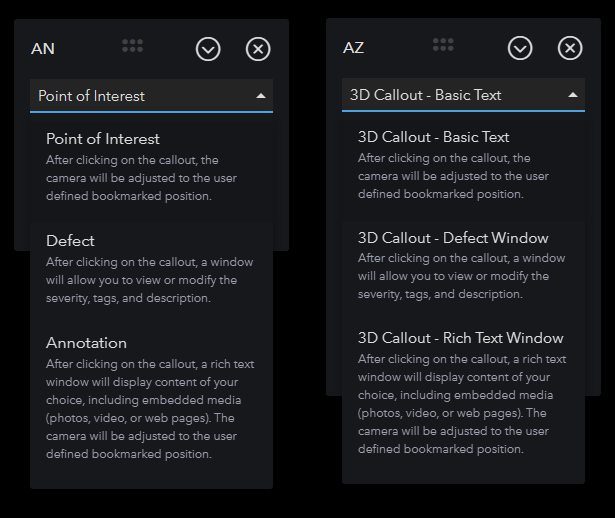
Updated 3D callout labels appear on the right.
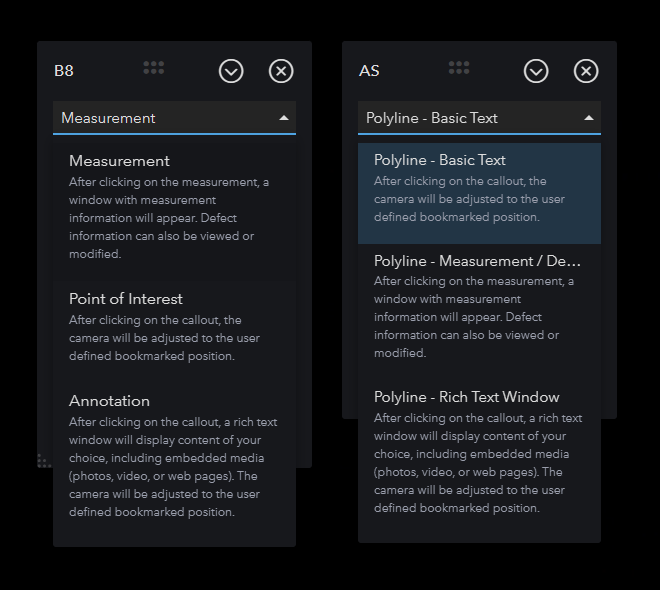
Updated polyline labels appear on the right.
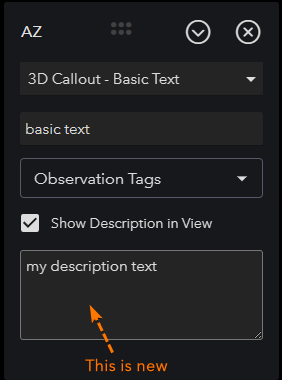
Basic Text annotations include an optional description field.
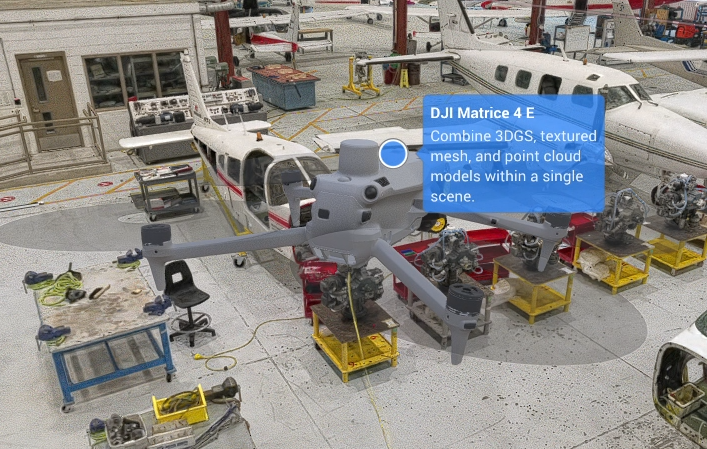
A Basic Text callout displays its title and description in the viewer.
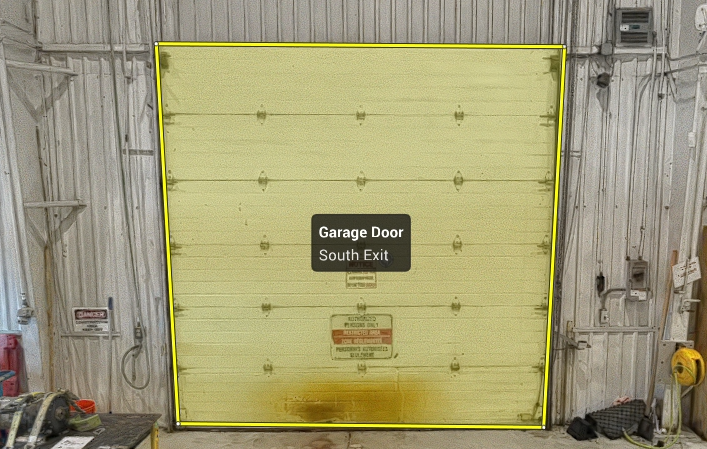
A Basic Text polyline displays a title and description.
Updated asset management pages
The Asset List, Upload Jobs, and Homepage & Map pages have refreshed interfaces.
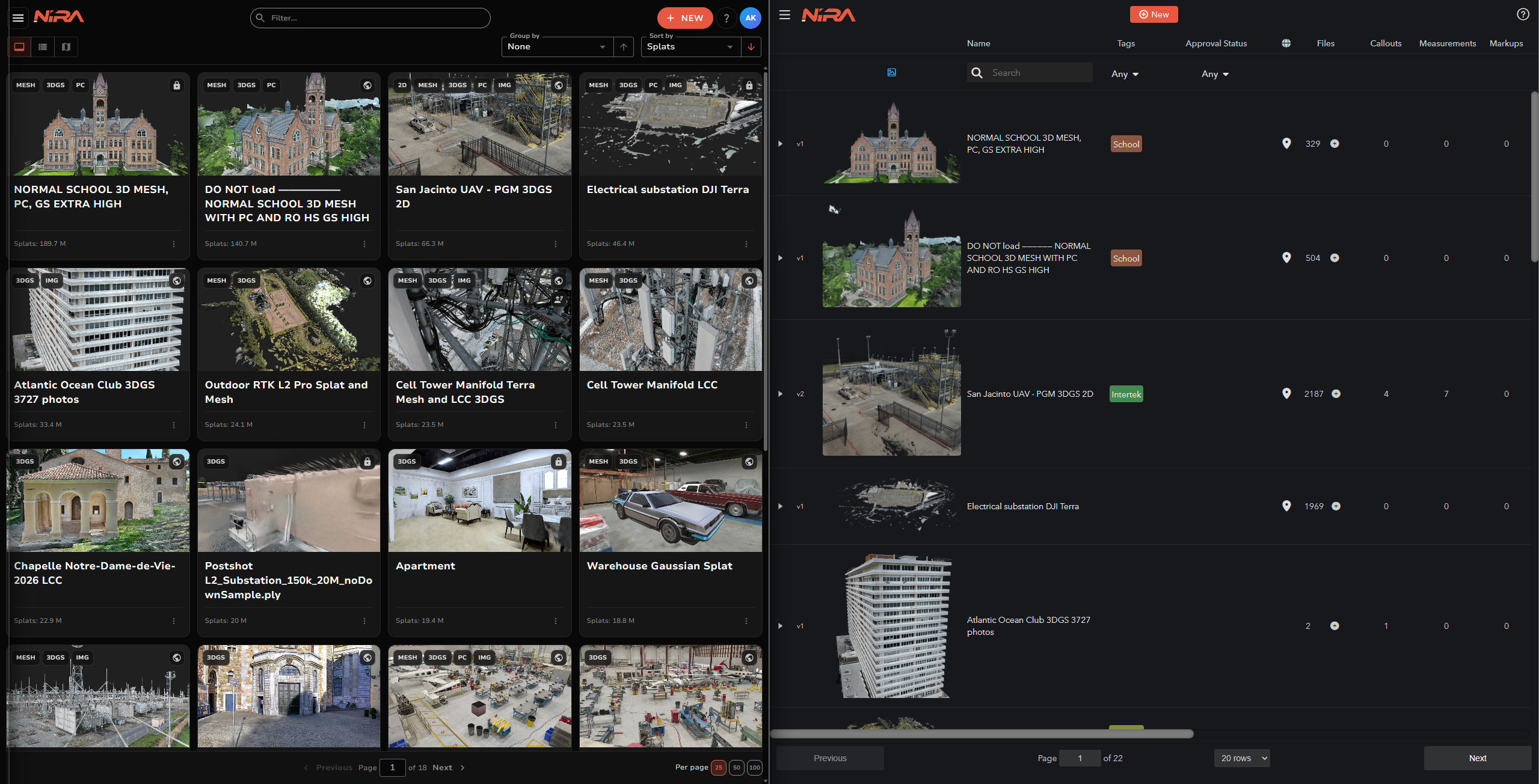
The updated Asset List appears on the left.
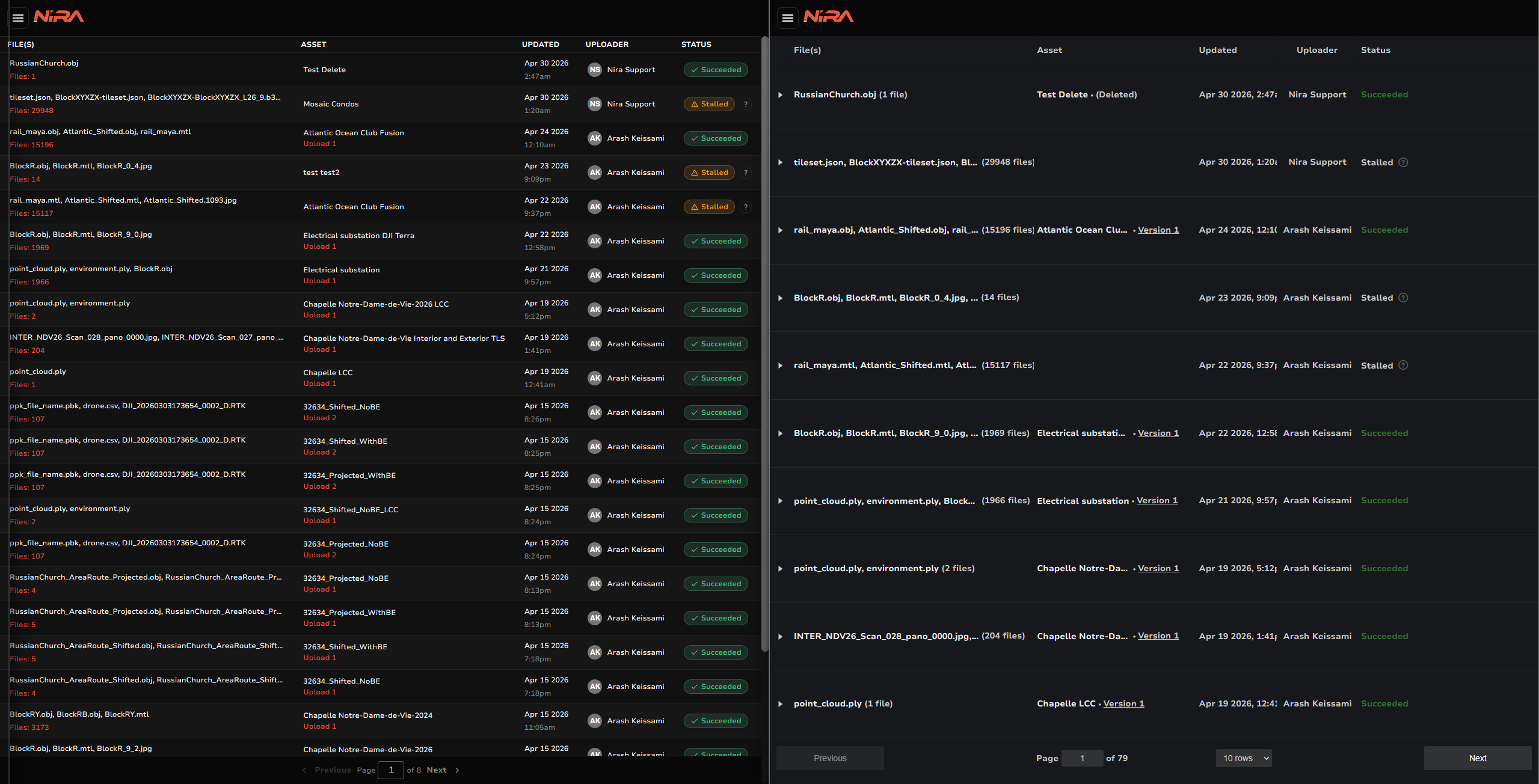
The updated Upload Jobs page appears on the left.
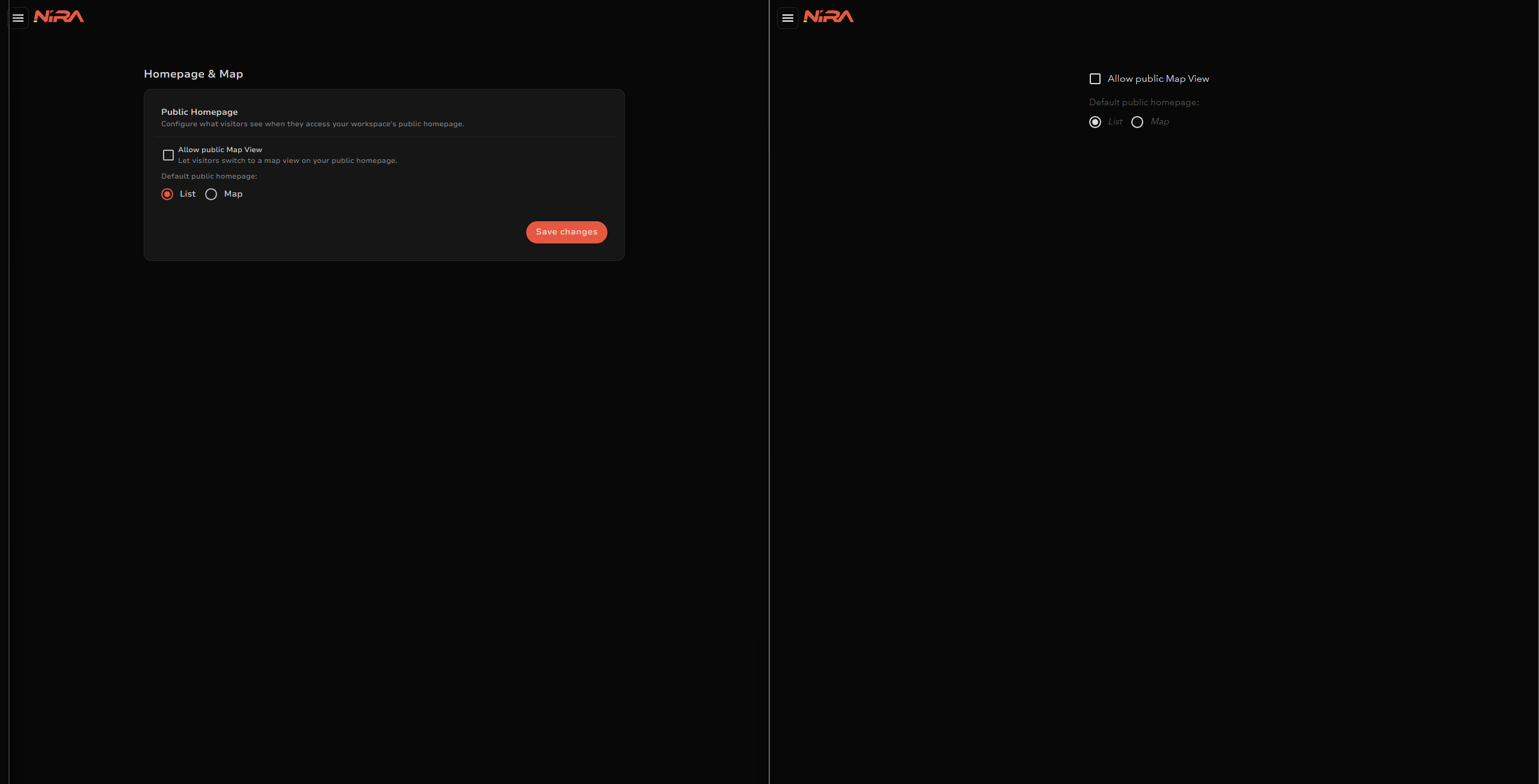
The updated Homepage & Map settings appear on the left.
March 2026
Link directly to an annotation
Copy a link to a callout or polyline. Opening it navigates to the annotation’s bookmarked view, or frames the polyline if it has no bookmark.
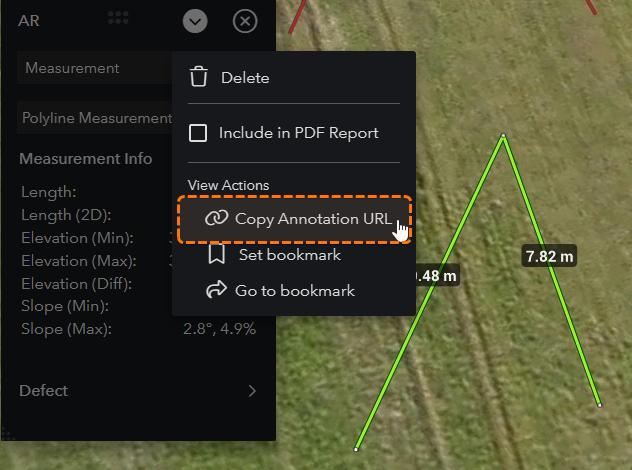
Copy a direct link from an annotation menu.
A redesigned Asset Preview page
The page makes better use of screen space and displays more asset information and statistics.
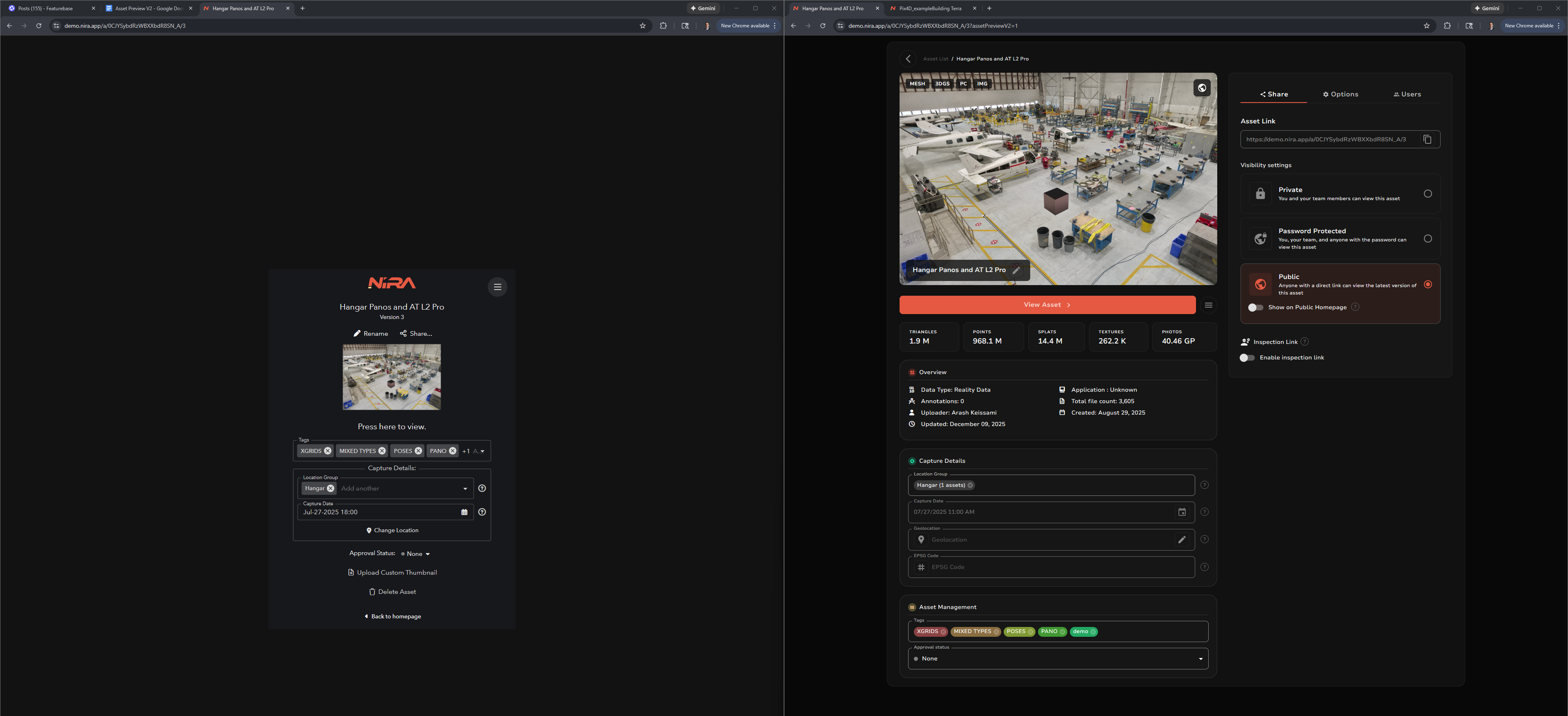
The redesigned Asset Preview page appears on the right, with more asset information and sharing controls.
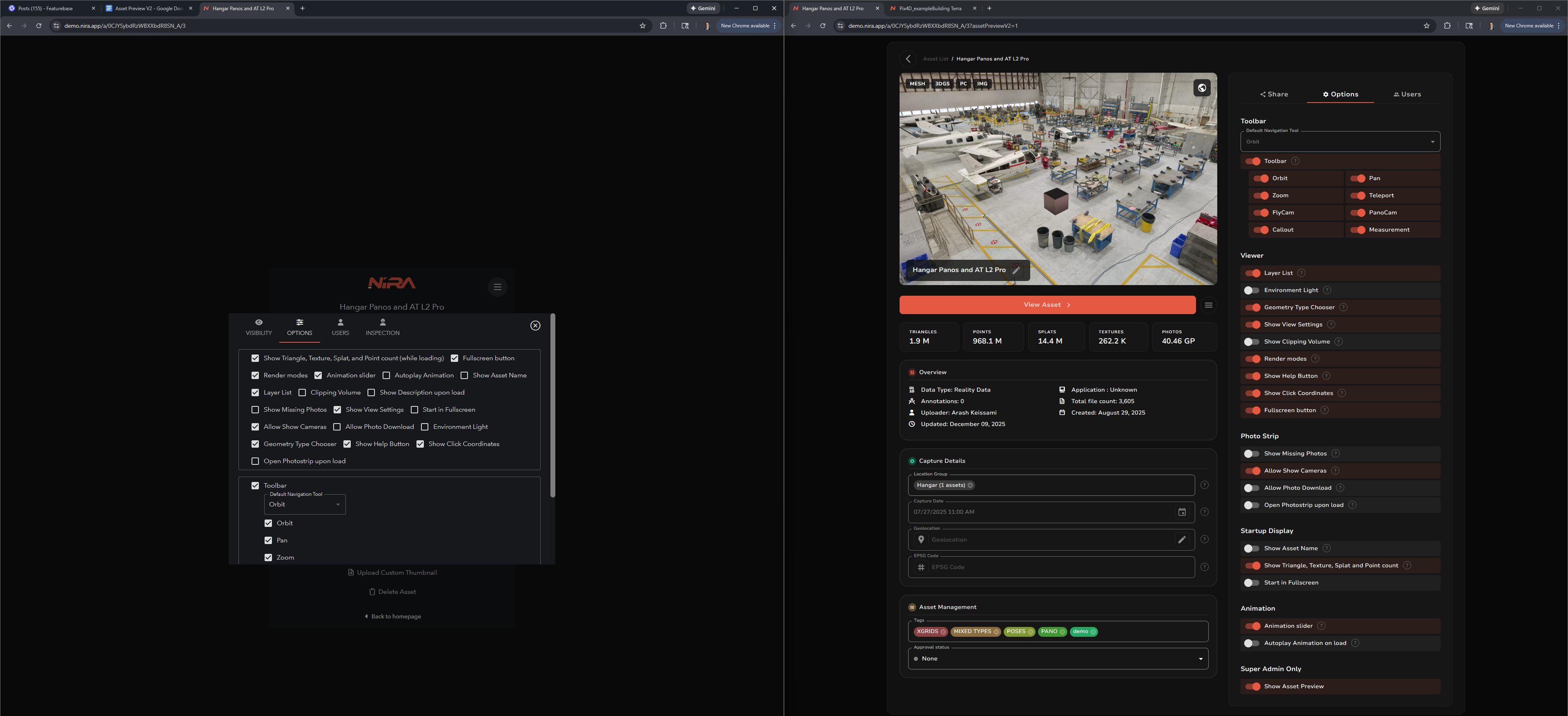
The redesigned Options panel appears on the right.
Improved welcome dialog
Visual issues have been fixed, and the dialog includes additional example applications such as DroneDeploy, RiScan Pro, and FARO SCENE.
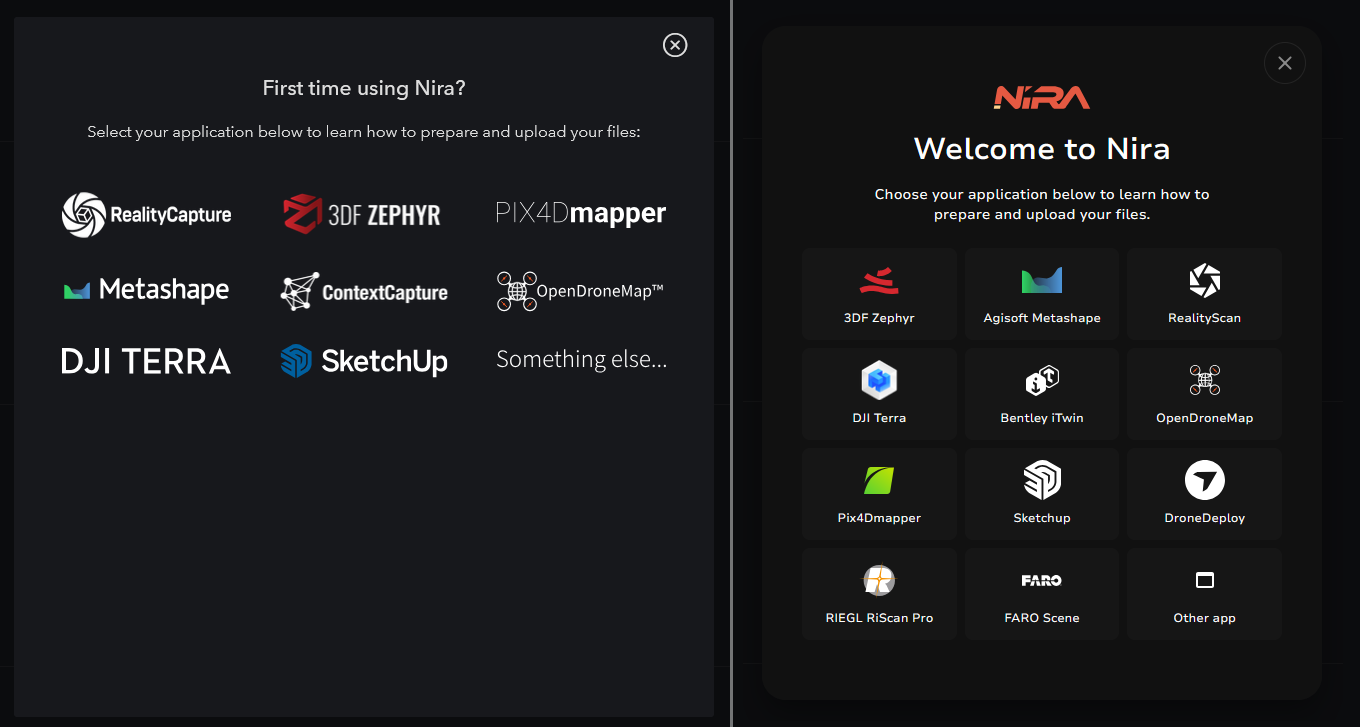
The updated welcome dialog appears on the right, with more application choices.
February 2026
Customize the shared viewer’s toolbar
Choose a default starting tool and which tools viewers can see in Share Options. For example, start an interior scene with Teleport selected.
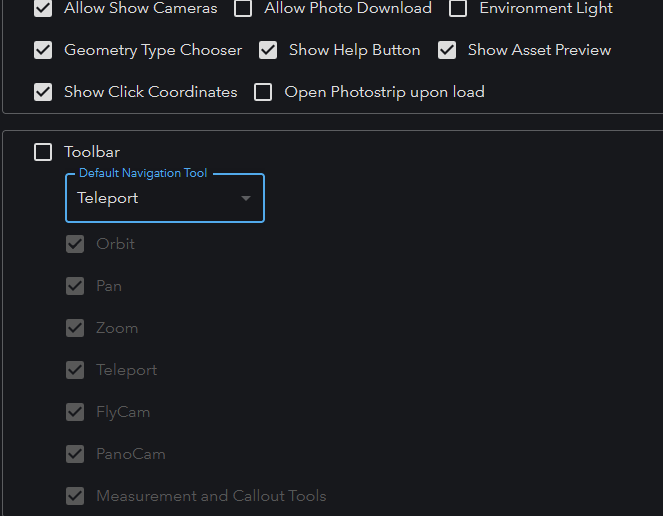
Choose a starting navigation tool and control toolbar visibility.
Keep either side when leaving Compare
You can now exit Compare by closing Side A, in addition to the existing option to close Side B.
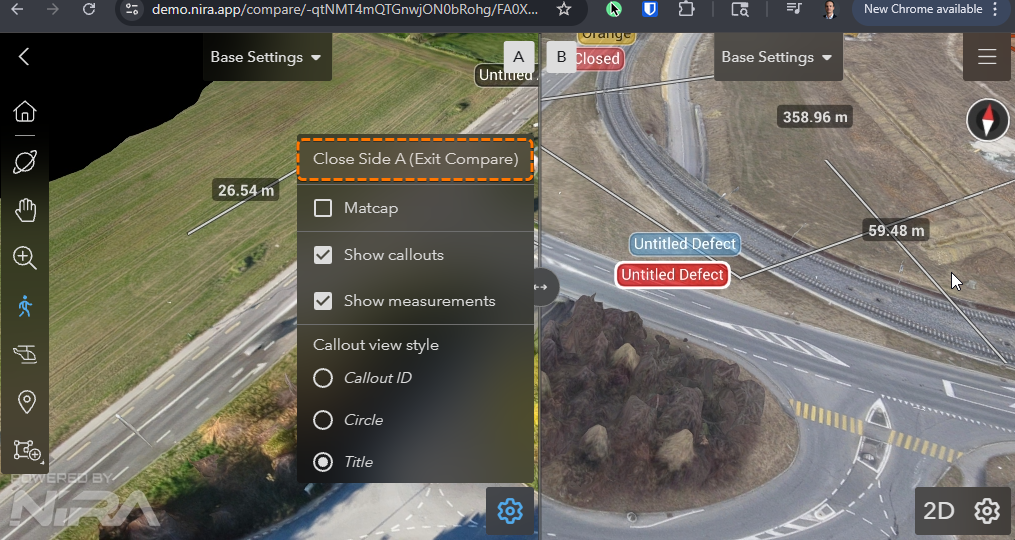
Close Side A to leave Compare and keep Side B.
See asset access counts by user
The Users page in Admin Options includes an Asset Count column showing how many assets each user can access.
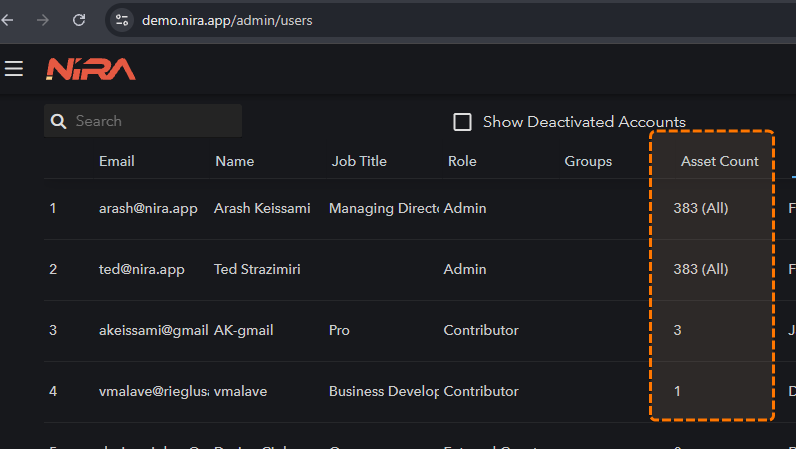
The Users page shows an Asset Count for each user.
January 2026
Control recipient downloads
Share options let Admins and Team Members enable source-file and annotated-image downloads for external guests and collaborators.
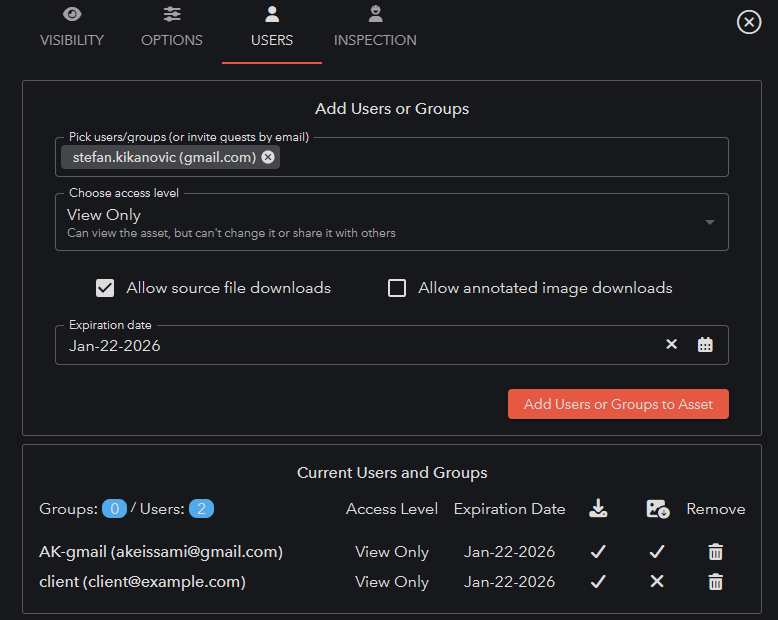
Choose source-file and annotated-image download permissions for recipients.
More tools in Compare mode
Create and edit callouts and measurements, and access view settings such as MatCap, Clipping Volume, and callout styles while comparing assets.
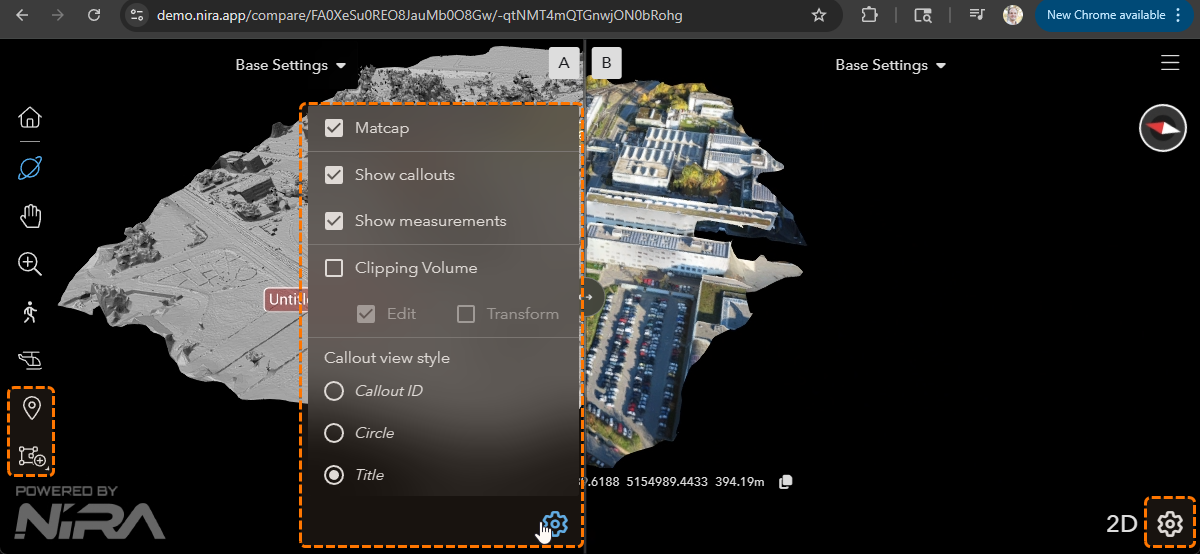
View settings and annotation tools are available while comparing assets.
Switch captures from the Timeline menu
The Compare menu has been renamed Timeline. Its Open... option switches to another asset in the same Location Group. The Asset Preview page also includes explanations of Location Group and Capture Date.
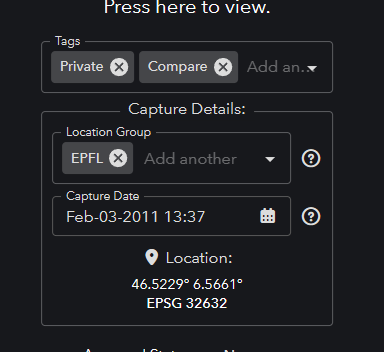
Location Group and Capture Date fields appear in Asset Preview.
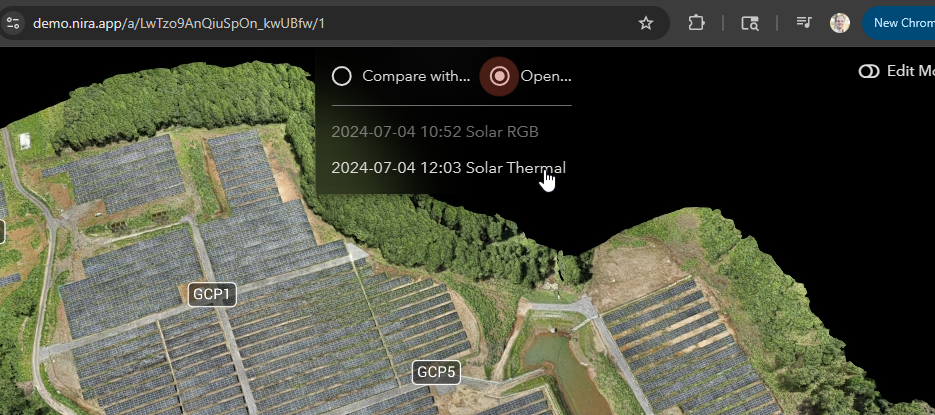
Use Open to switch between captures in a Location Group.
Clearer callouts
Updated styling adds a Show Pointer option, a Hidden occlusion style for callouts behind geometry, and improved shrinking and expanding of overlapping callouts.
Smoother Edit Mode transitions
Entering or leaving Edit Mode no longer briefly blacks out the viewer during the transition.
More readable asset names
Long asset names wrap across up to three lines.
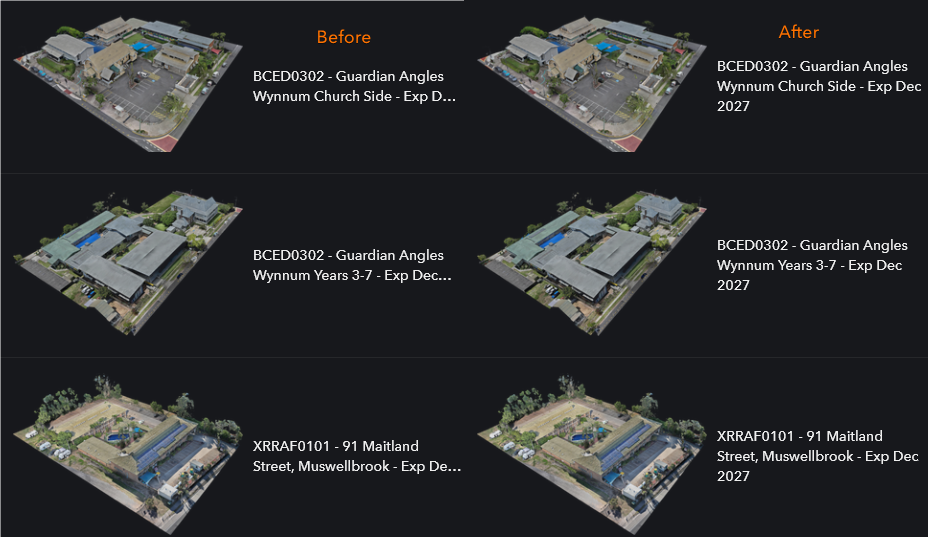
Long asset names wrap across up to three lines, shown on the right.
New callout information for Viewer API integrations
The view_steady event can return callouts ordered by distance from the camera, with distance and visibility information, after the view settles. Integrations can use this information to update their own callout lists as the view changes.
December 2025
View Stats and Analytics
Analytics became available for Enterprise customers, with a Growth add-on introduced later in the month.
Use View Variants in Compare mode
Apply saved variants while comparing assets.
Allow clipping in shared public views
Enable Clipping Volume in Share Options so public viewers can turn it on and adjust it.
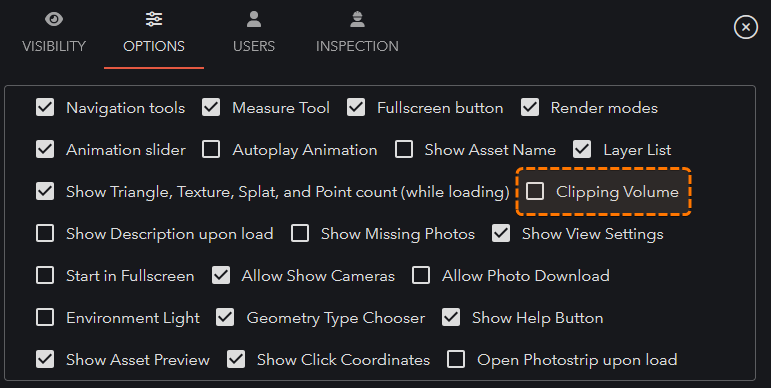
Enable Clipping Volume in Share Options.
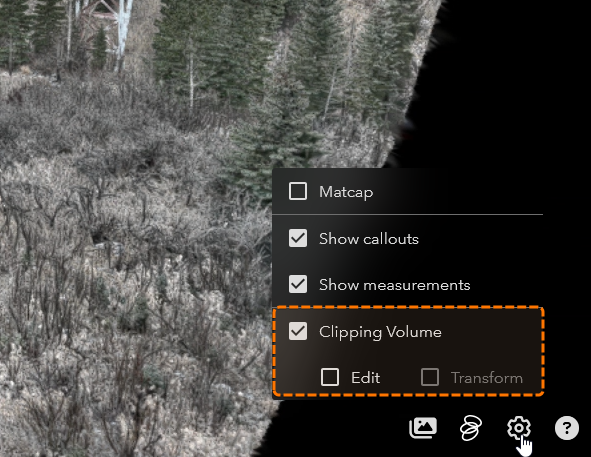
Viewers can enable and edit the clipping volume.
November 2025
Download source files and annotated images
Source-file and annotated-image downloads were added to the Asset Preview page, including cropped and full annotated images.
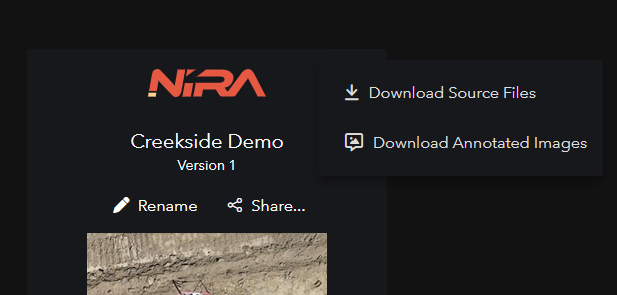
Source-file and annotated-image downloads in the Asset Preview menu.
MatCap for point clouds and Gaussian splats
MatCap rendering is now available for both data types.
Improved ambient occlusion
Ambient occlusion quality has improved for meshes and point clouds.
More precise small-scale Gaussian splats
Precision improvements help when viewing Gaussian splats at small scales.
Faster loading and rendering in the U.S. and Europe
Rendering infrastructure in these regions was upgraded to improve performance.