How do I insert media into a callout annotation?
Written By Nira.app
Last updated 9 days ago
You can use this asset as a reference for examples of different embedded media: https://demo.nira.app/a/pcLhFQuYT76ZkNUbJZQVnA/2
Embed Matterport Assets:
Be sure to enable "Link to this location" and then copy the URL.
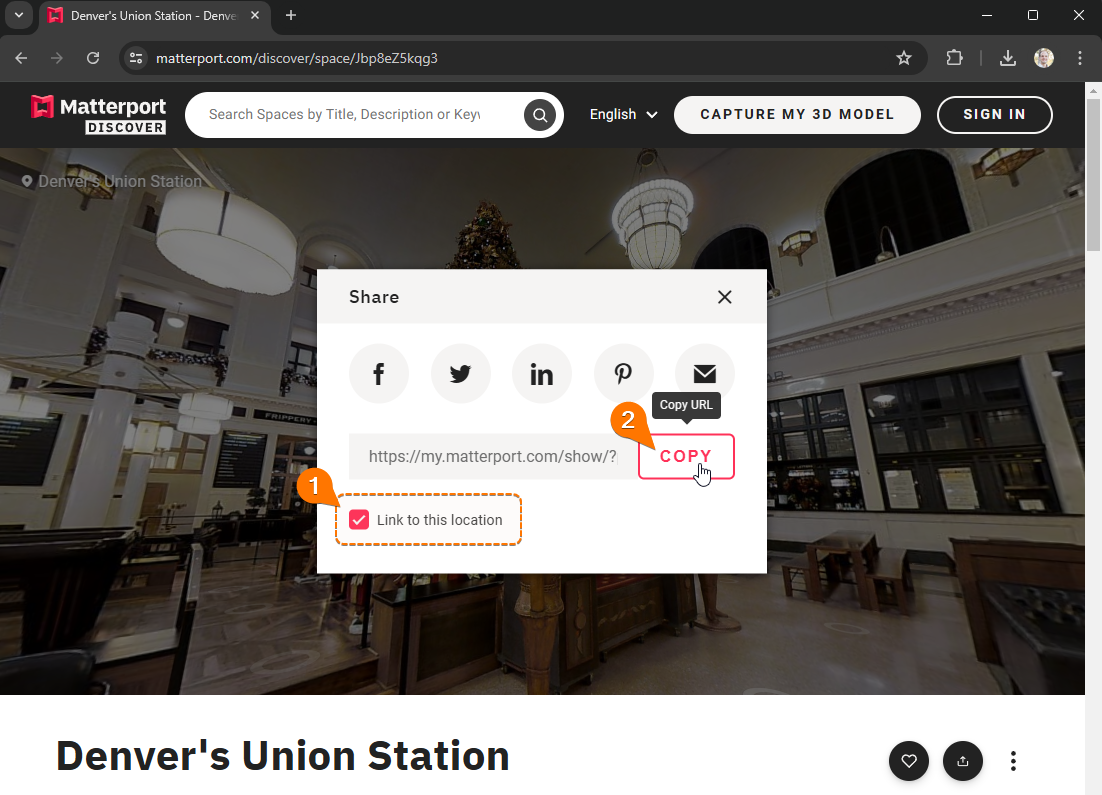
- Select the Callout
- Select 3D Callout - Rich Text Window
- Click Insert Embed
- Paste the Matterport URL and click Ok
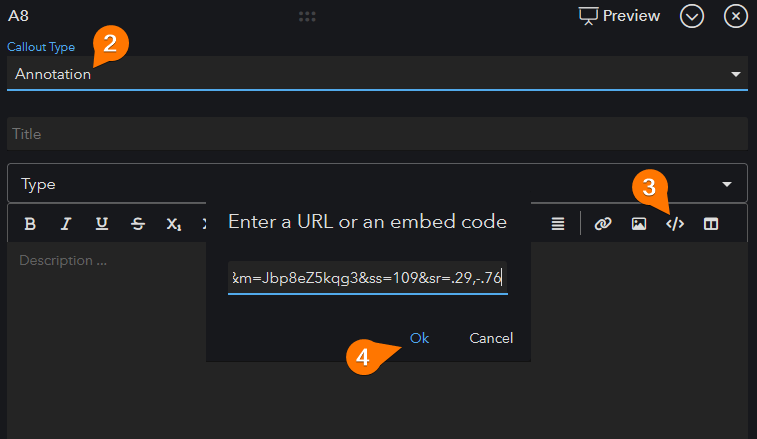
Click here to view an example of a Matterport embedded asset within Nira: https://demo.nira.app/a/pcLhFQuYT76ZkNUbJZQVnA/2
Embed Images:
1. Copy the image URL.
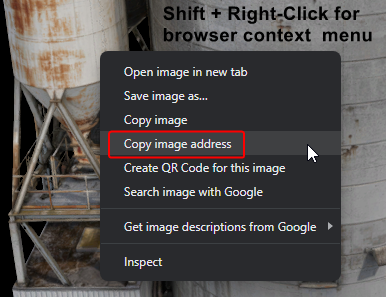
Note: For most images, you can copy the URL from the address bar or right-click on the image to copy the URL from context menu. Some websites (e.g., Google Drive) require that you hold the Shift key down while right-clicking to display the context menu.
2. Paste the URL into the Annotation Description box using the Insert Image icon.
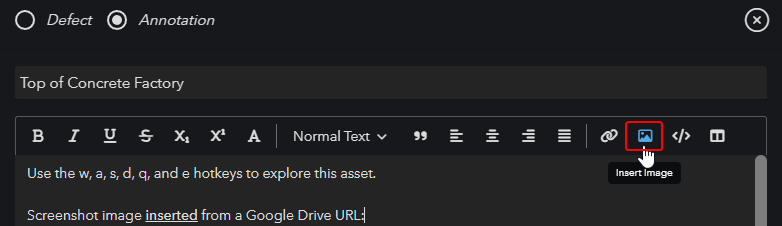
Alternatively, you may choose to embed the image. Some hosting platforms provide embedding options and is a good choice if you'd like to include the image navigation controls, e.g., zoom in/out buttons.
For Google Drive media, you may need to click "Open in new window" to find the embedding options...
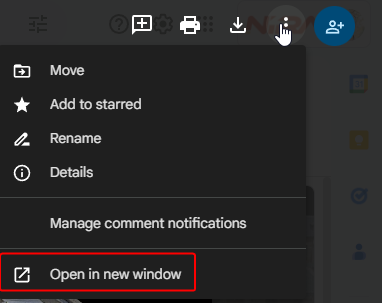
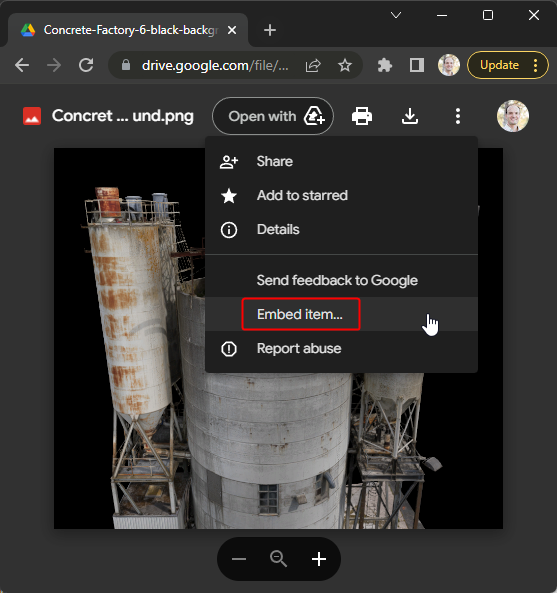
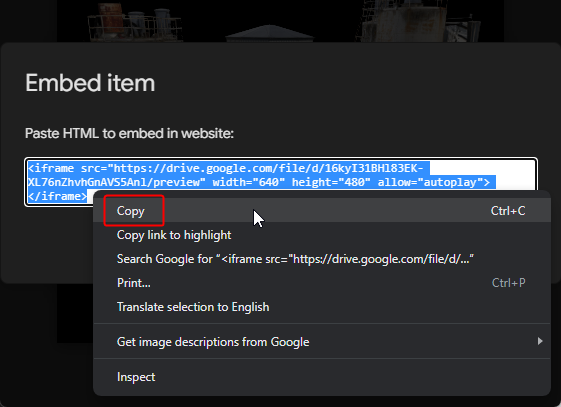
Paste the URL into the Annotation using the Insert Embed icon.
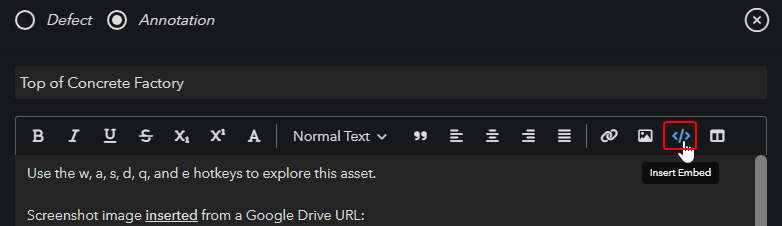
Example asset with multiple photos embedded from external URLs: https://demo.nira.app/a/pcLhFQuYT76ZkNUbJZQVnA/2
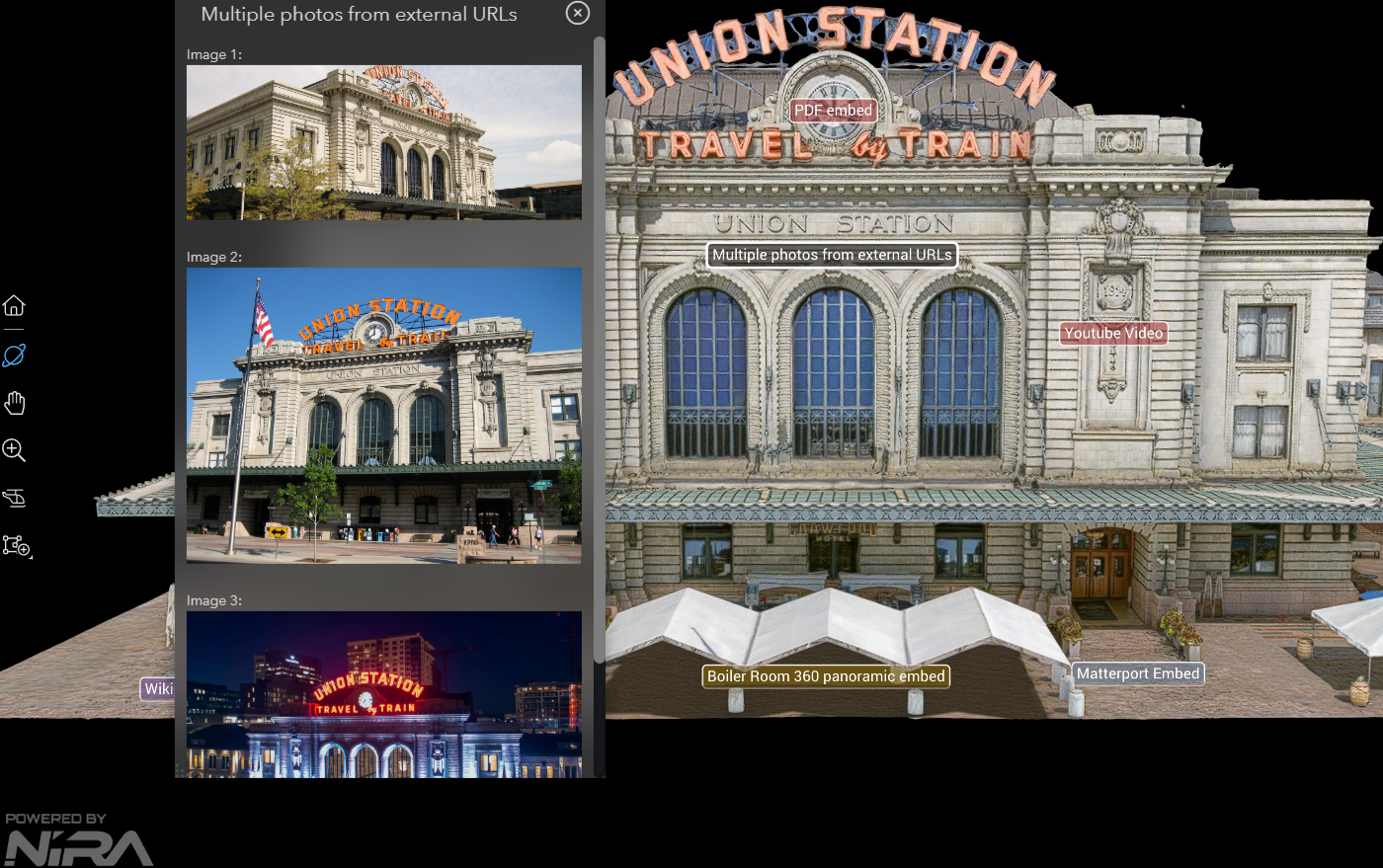
Embed Videos:
You can provide a URL or embed a video directly within the Description box. For this example, we'll use YouTube.
1. Click Share
2. Choose Embed
3. Copy Embed code
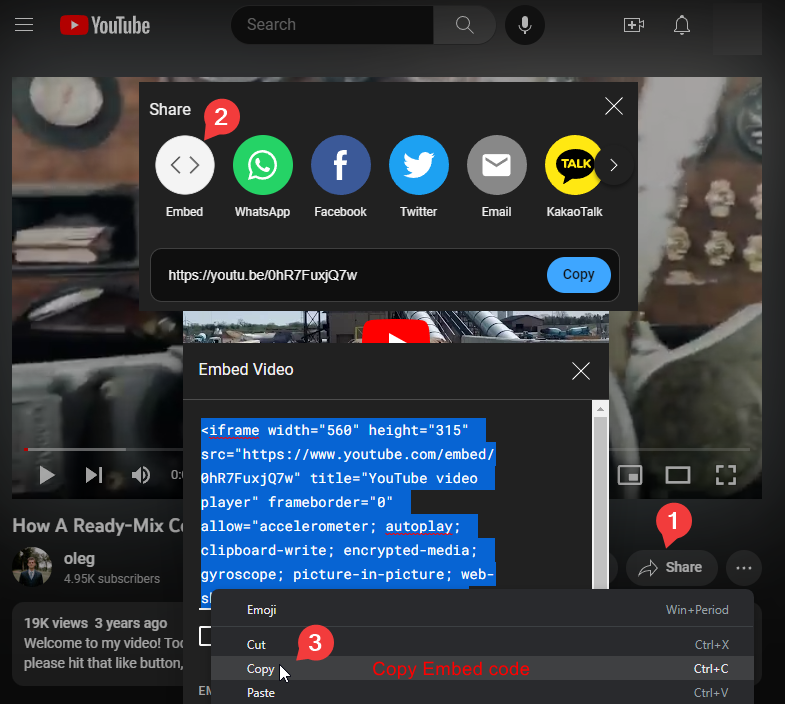
4. Paste Embed code and click Ok
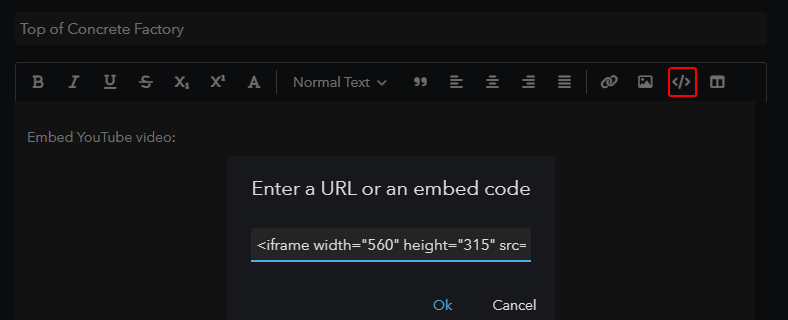
Embed Panoramic / 360 images:
You can embed a 360 panoramic image from a third-party hosting platform in a Rich Text Window annotation. Nira also supports native panoramic imagery from E57 files or JPG images with a CSV pose file, including panoramas alongside meshes and 3D Gaussian splats.
See various embed examples here: https://demo.nira.app/a/pcLhFQuYT76ZkNUbJZQVnA/2
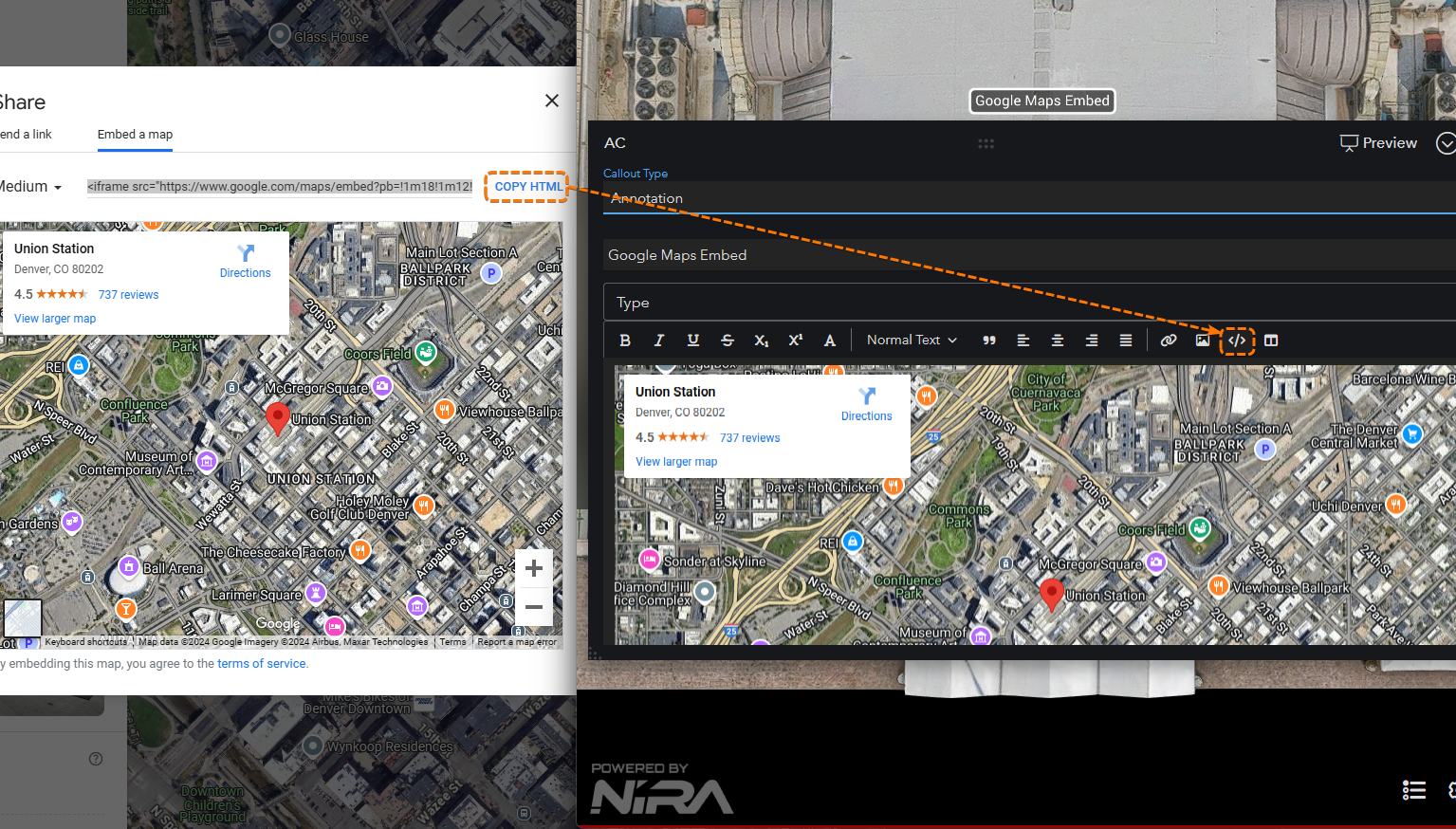
Embed Google Maps:
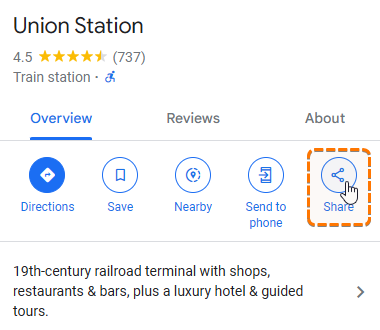
The Google Maps Share dialog will have two tabs: Send a link and Embed a map. Choose Embed a map to copy the COPY HTML and paste that into the Embed dialog box within the Callout Annotation.
Embed PDF documents:
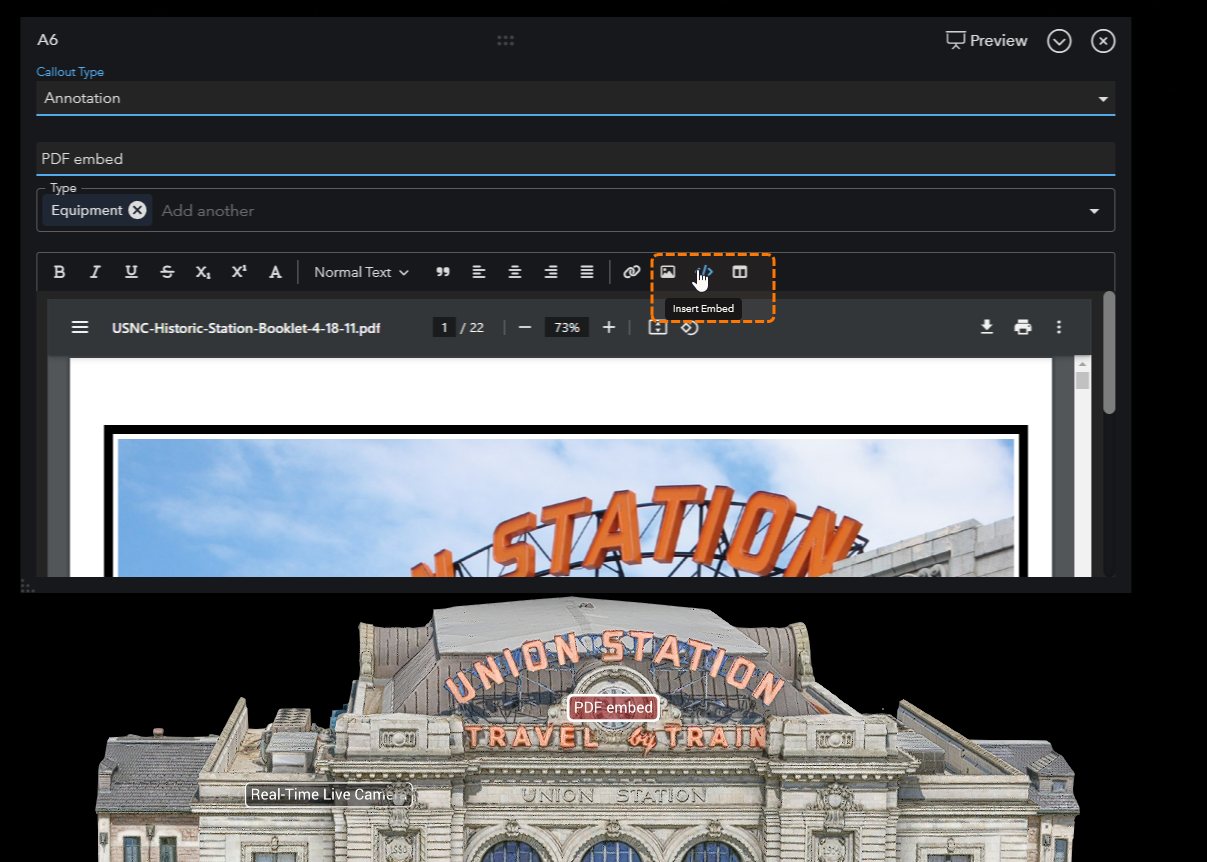
Select 3D Callout - Rich Text Window and paste the URL into the Insert Embed dialog. Please note that most file-sharing services, such as Google Drive and Dropbox, typically do not support embedding PDFs without adjusting your browser settings.
For more details, visit: https://help.slab.com/en/articles/6523600-troubleshooting-google-drive-embeds#
To embed a PDF, the files must be hosted directly on a file server.
Embed Live Video feeds:
Select 3D Callout - Rich Text Window and paste the URL into the Insert Embed dialog.