The Layer List window
Written By Nira.app
Last updated About 3 hours ago
The Layers panel displays a listing of all callouts and measurements for the current asset. It uses a compact, dockable interface and is docked by default.
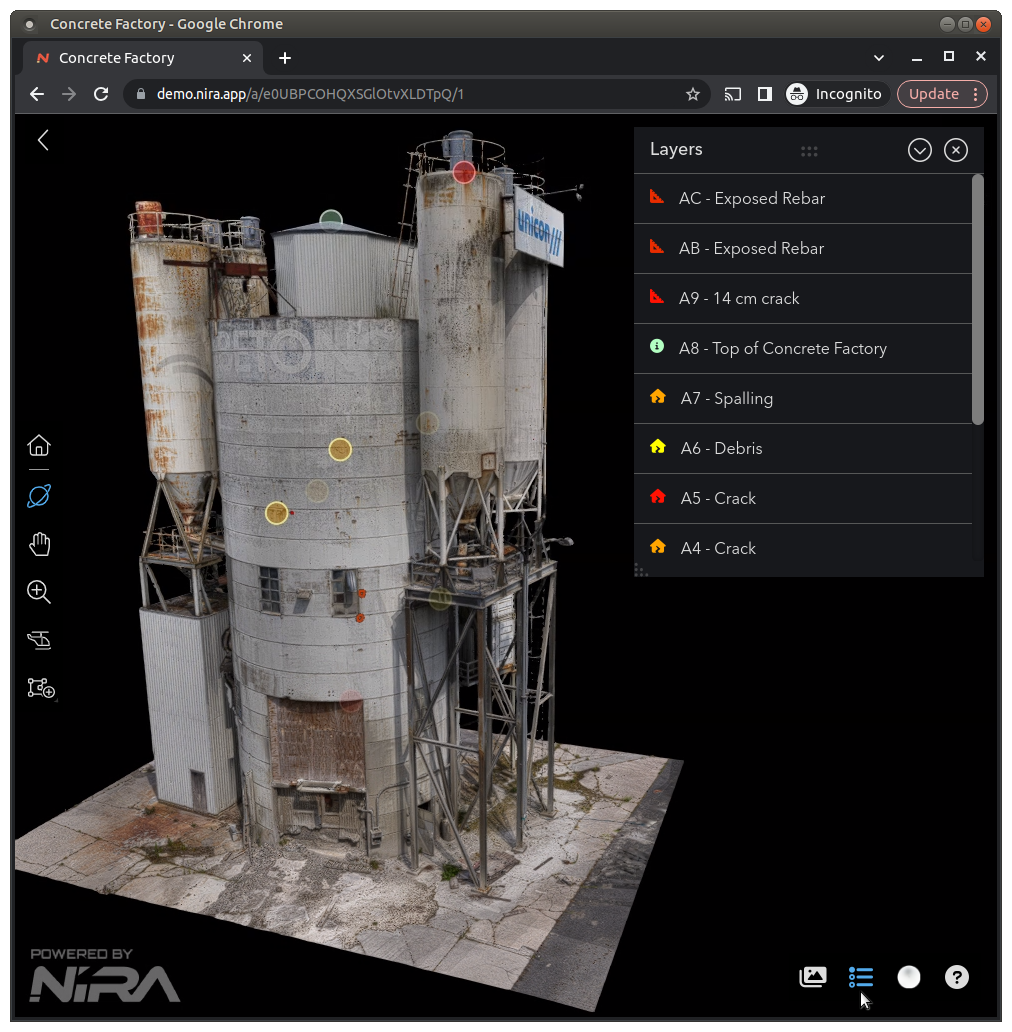
The layer list window (upper right corner) and the layer list button (lower right corner, in blue)
To open the window, click the layer list button. Clicking on a callout or measurement within the list will activate it, and can perform other actions such as opening that callout's window or shifting to a predetermined 3D view. To learn more about how callouts and measurements behave when they're clicked, see the Annotation and Measurement section of our documentation.
Use the eye control on an annotation to show or hide it. Use its focus button to navigate to a saved bookmark, or to frame the annotation if it has no bookmark. Color controls now provide 14 palette colors and a color picker for an arbitrary color.
The dropdown in the window's upper right corner also offers several functions:
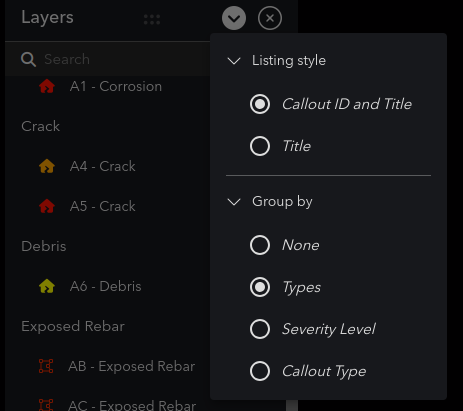
- Group by: Items in the callout list will be categorized based upon your choice.
- Listing style: Controls how callouts are shown within the Layer list window - with the Callout ID and Title, or only with the Title.
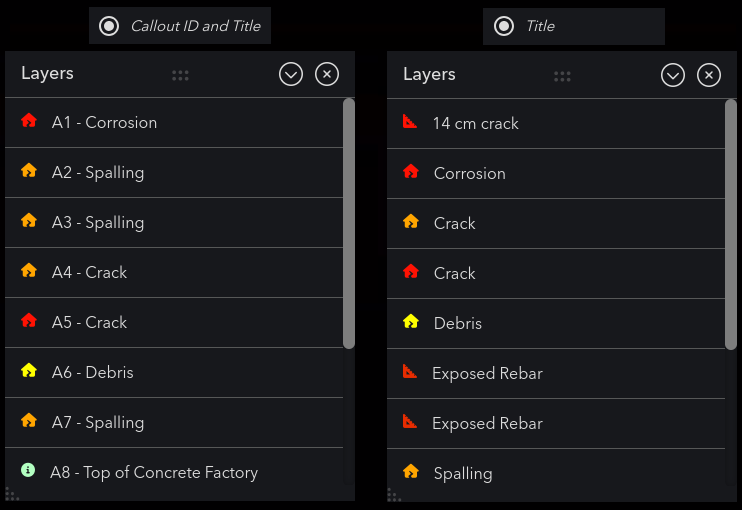
Listing style: Callout ID and Title (left), Title (right)